# ZABBIX

# INSTALLATION SERVEUR ZABBIX

#### Prérequis

- Avoir un serveur sous linux
- 1 Go de RAM
- 10 Go de stockage
- 1 CPU
- Avoir un serveur de base donné MySQL/MariaDB

#### Installation

```bash
 wget https://repo.zabbix.com/zabbix/6.5/debian/pool/main/z/zabbix-release/zabbix-release_6.5-1%2Bdebian12_all.deb
```

- Mettez à jour le sevreur:  
    ```bash
    apt update && apt upgrade
    ```
- Téléchargez l'utilitaire d'installation
- Installez le .deb  
    ```bash
     dpkg -i zabbix-release_6.5-1+debian12_all.deb
    ```
- Mettez à jour les repos et installez les bons paquets  
    ```bash
    apt update && apt install zabbix-server-mysql zabbix-frontend-php zabbix-apache-conf zabbix-sql-scripts zabbix-agent2  mariadb-client
    ```
- Création de la base de donnée  
    ```sql
    MariaDB [(none)]> create database zabbix character set utf8 collate utf8_bin;
    Query OK, 1 row affected (0.004 sec)
    ```
- Création du User et de son mot de passe  
    ```sql
    grant all privileges on zabbix.* to 'zabbix'@'%' identified by 'password';
    ```
- Autoriser la modifications des bin-log sur le serveur mysql:  
    ```sql
    set global log_bin_trust_function_creators = 1;
    ```
- Envoie des tables par défaut de zabbix sur la base de donnée  
    ```bash
    root@zab-front-01:~# zcat /usr/share/zabbix-sql-scripts/mysql/server.sql.gz |mysql -u zabbix -p zabbix -h 172.16.0.6
    ```
- Réactiver la protection des bin-log sur le serveur mysql:  
    ```sql
    set global log_bin_trust_function_creators = 0;
    ```
- Modifier le fichier `/etc/zabbix/zabbix_server.conf`  
    <span style="font-family: monospace;"><span style="color: #000000; background-color: #ffffff;">DBHost=172.16.0.6</span>  
    </span><span style="font-family: monospace;"><span style="color: #000000; background-color: #ffffff;">DBPassword=zabbix</span></span>
- Démarrer les services  
    ```bash
    systemctl restart zabbix-server zabbix-agent2 apache2
    systemctl enable zabbix-server zabbix-agent2 apache2
    ```
- Accéder au serveur Zabbix  
    [![image.png](https://book.techoops.fr/uploads/images/gallery/2023-12/scaled-1680-/image.png)](https://book.techoops.fr/uploads/images/gallery/2023-12/image.png)
    
    [![image.png](https://book.techoops.fr/uploads/images/gallery/2023-12/scaled-1680-/rrbimage.png)](https://book.techoops.fr/uploads/images/gallery/2023-12/rrbimage.png)
    
    [![image.png](https://book.techoops.fr/uploads/images/gallery/2023-12/scaled-1680-/IJVimage.png)](https://book.techoops.fr/uploads/images/gallery/2023-12/IJVimage.png)
    
    [![image.png](https://book.techoops.fr/uploads/images/gallery/2023-12/scaled-1680-/TcWimage.png)](https://book.techoops.fr/uploads/images/gallery/2023-12/TcWimage.png)
    
    [![image.png](https://book.techoops.fr/uploads/images/gallery/2023-12/scaled-1680-/rOmimage.png)](https://book.techoops.fr/uploads/images/gallery/2023-12/rOmimage.png)
- Connectez vous avec l’identifiant Admin et le mot de passe zabbix  
    [![image.png](https://book.techoops.fr/uploads/images/gallery/2023-12/scaled-1680-/bHdimage.png)](https://book.techoops.fr/uploads/images/gallery/2023-12/bHdimage.png)
- Voila on est connecté  
    [![image.png](https://book.techoops.fr/uploads/images/gallery/2023-12/scaled-1680-/LRLimage.png)](https://book.techoops.fr/uploads/images/gallery/2023-12/LRLimage.png)

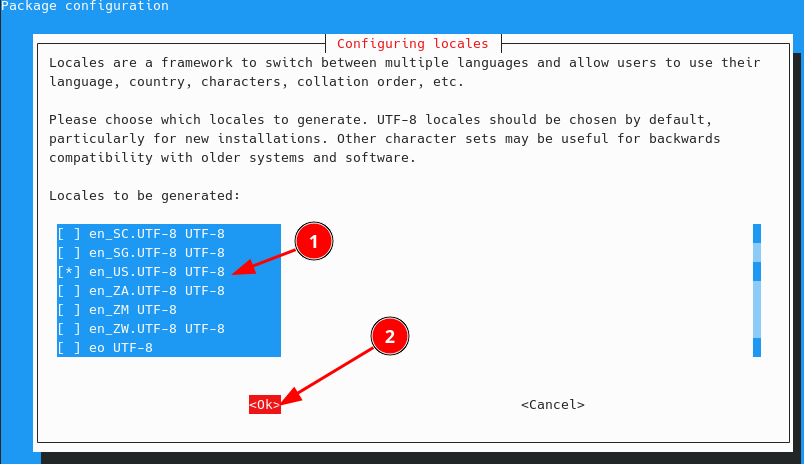
<p class="callout info">Si vous avez les même erreurs que moi:  
`root@zab-front-01:~# dpkg-reconfigure` locales  
[![image.png](https://book.techoops.fr/uploads/images/gallery/2023-12/scaled-1680-/0EBimage.png)](https://book.techoops.fr/uploads/images/gallery/2023-12/0EBimage.png)</p>
# Zabbix Agent

# Agent zabbix avec autoregistration

#### Prérequis

- Avoir un zabbix-server d'installé

#### Installation de zabbix agent 

Le serveur que je vais ajouter est un serveur mariadb

- Installation via apt  
    ```bash
    apt install zabbix-agent2
    ```
- Editer le fichier de config <span style="font-family: monospace;">`<span style="color: #000000; background-color: #ffffff;">/etc/zabbix/zabbix_agent2.conf</span>` et modifier:  
    </span><span style="font-family: monospace;"><span style="color: #000000; background-color: #ffffff;">Server=172.16.0.8</span>  
    </span><span style="font-family: monospace;"><span style="color: #000000; background-color: #ffffff;">ServerActive=172.16.0.8</span>  
    <span style="color: #000000; background-color: #ffffff;">Hostname=zab-front-01</span>  
    <span style="color: #000000; background-color: #ffffff;">HostMetadata=Linux\_db</span>  
    </span>
- <span style="font-family: monospace;"><span style="font-family: monospace;">Redémarrer le service  
    </span></span>```bash
    root@sql-front-01:~# systemctl restart zabbix-agent2.service 
    root@sql-front-01:~# systemctl status zabbix-agent2.service 
    * zabbix-agent2.service - Zabbix Agent 2
         Loaded: loaded (/lib/systemd/system/zabbix-agent2.service; enabled; preset: enabled)
         Active: active (running) since Wed 2023-12-06 15:44:55 UTC; 7s ago
           Docs: man:zabbix_agent2
       Main PID: 819 (zabbix_agent2)
          Tasks: 6 (limit: 9395)
         Memory: 4.1M
            CPU: 28ms
         CGroup: /system.slice/zabbix-agent2.service
                 `-819 /usr/sbin/zabbix_agent2 -foreground -c /etc/zabbix/zabbix_agent2.conf
    
    Dec 06 15:44:55 sql-front-01 systemd[1]: zabbix-agent2.service: Deactivated successfully.
    Dec 06 15:44:55 sql-front-01 systemd[1]: Stopped zabbix-agent2.service - Zabbix Agent 2.
    Dec 06 15:44:55 sql-front-01 systemd[1]: Started zabbix-agent2.service - Zabbix Agent 2.
    Dec 06 15:44:55 sql-front-01 zabbix_agent2[819]: Starting Zabbix Agent 2 (6.0.14)
    Dec 06 15:44:55 sql-front-01 zabbix_agent2[819]: Zabbix Agent2 hostname: [zab-front-01]
    Dec 06 15:44:55 sql-front-01 zabbix_agent2[819]: Press Ctrl+C to exit.
    ```

#### Paramétrer le serveur zabbix

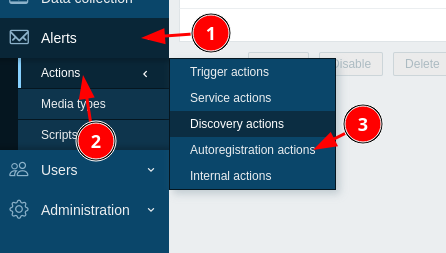
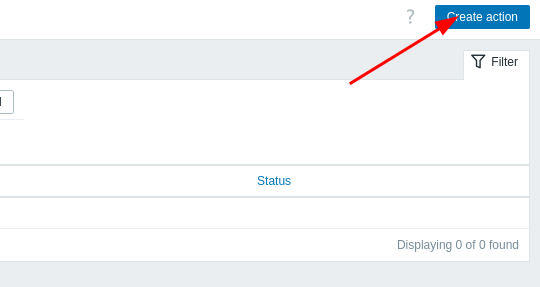
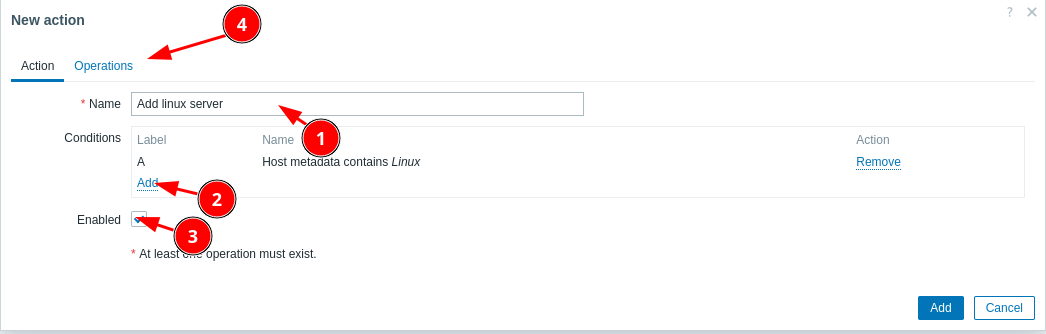
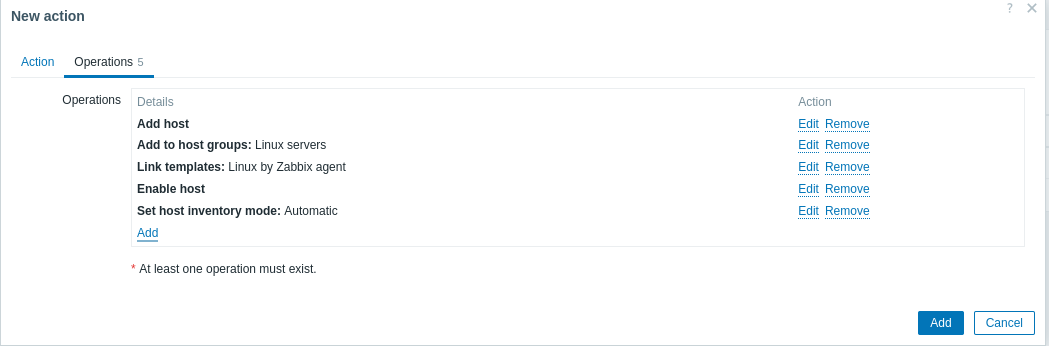
- Ajouter une action  
    [![image.png](https://book.techoops.fr/uploads/images/gallery/2023-12/scaled-1680-/fjTimage.png)](https://book.techoops.fr/uploads/images/gallery/2023-12/fjTimage.png)
    
    [![image.png](https://book.techoops.fr/uploads/images/gallery/2023-12/scaled-1680-/4g6image.png)](https://book.techoops.fr/uploads/images/gallery/2023-12/4g6image.png)
    
    [![image.png](https://book.techoops.fr/uploads/images/gallery/2023-12/scaled-1680-/OIBimage.png)](https://book.techoops.fr/uploads/images/gallery/2023-12/OIBimage.png)
    
    [![image.png](https://book.techoops.fr/uploads/images/gallery/2023-12/scaled-1680-/SYnimage.png)](https://book.techoops.fr/uploads/images/gallery/2023-12/SYnimage.png)
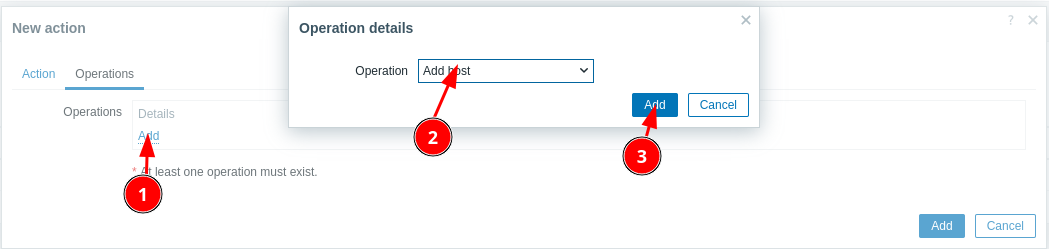
    
    [![image.png](https://book.techoops.fr/uploads/images/gallery/2023-12/scaled-1680-/sYsimage.png)](https://book.techoops.fr/uploads/images/gallery/2023-12/sYsimage.png)
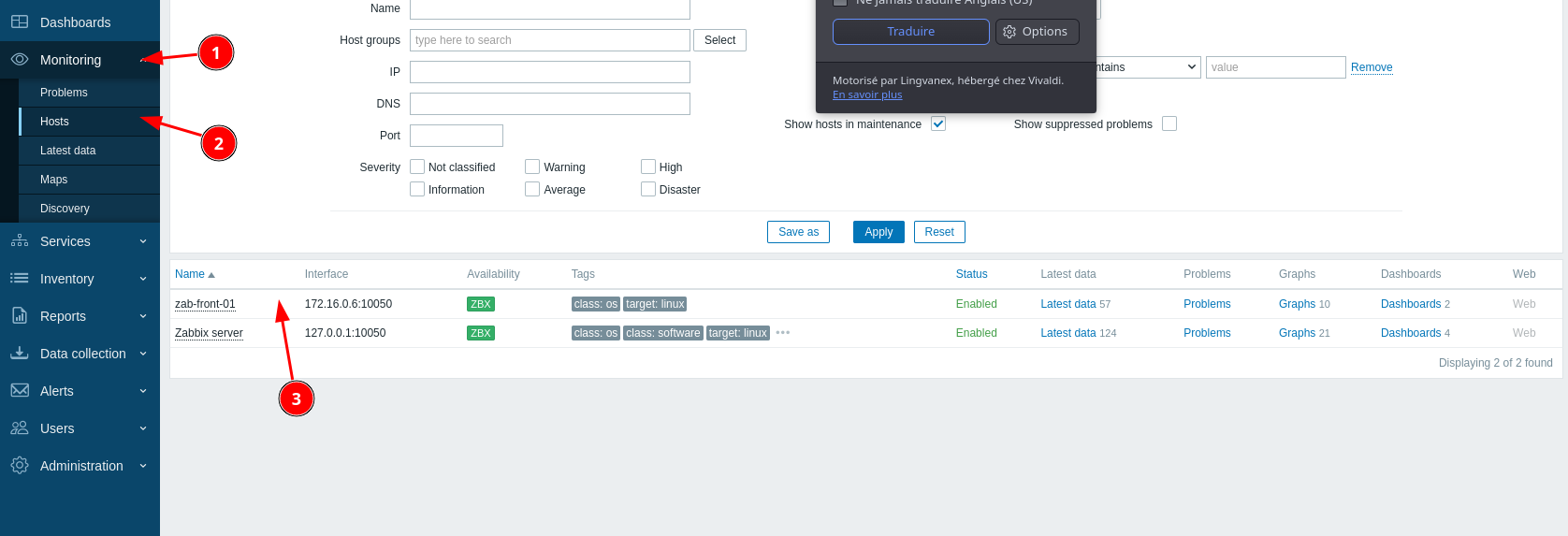
- Attendre un peu et le le host est bien présent  
    [![image.png](https://book.techoops.fr/uploads/images/gallery/2023-12/scaled-1680-/Mfjimage.png)](https://book.techoops.fr/uploads/images/gallery/2023-12/Mfjimage.png)
# WINDOWS SERVER CORE

Tout d'abord importer le package .msi de Zabbix Agent sur le Serveur Windows Core.

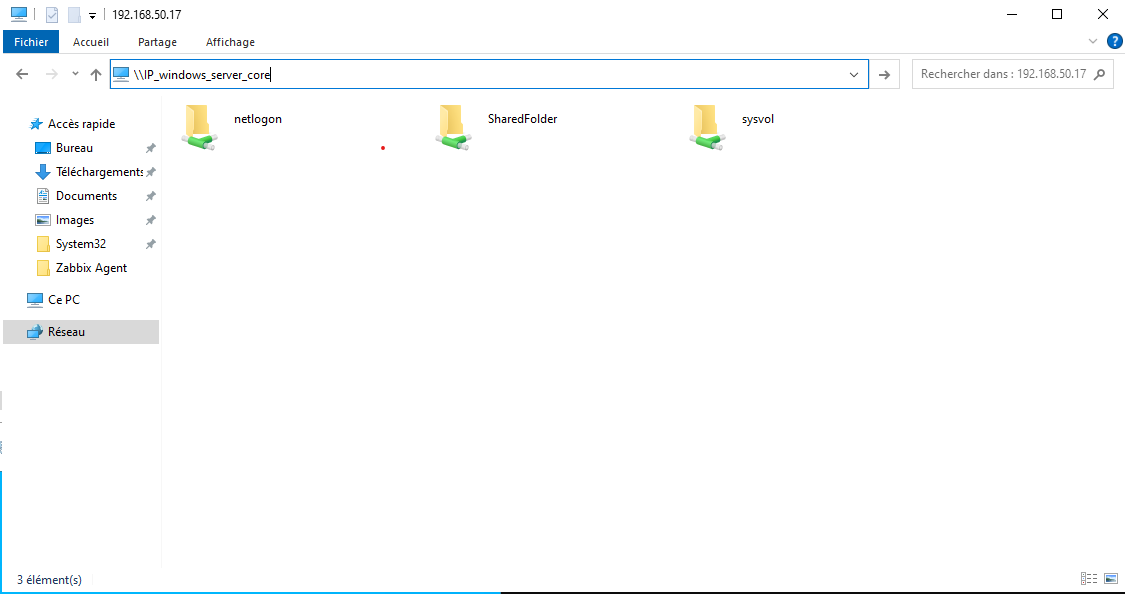
Le plus simple : créer un dossier partager et importer le fichier depuis le premier serveur AD.

- **Sur le Windows Core** (à modifier avec vos préférences):

```
New-Item "C:\SharedFolder" -itemType Directory 
```

```
New-SmbShare -Name SharedFolder -Path "C:\SharedFolder" -FullAccess "Tout le monde"
```

**Depuis le ad-front-01**

[![image.png](https://book.techoops.fr/uploads/images/gallery/2023-12/scaled-1680-/2Hyimage.png)](https://book.techoops.fr/uploads/images/gallery/2023-12/2Hyimage.png)
- **Sur Windows Core**, exécuter le package .msi et suivre l'installation. (à modifier si besoin)

```
msiexec.exe /i C:\SharedFolder\zabbix_agent-6.4.10-windows-amd64-openssl.msi
```

- Maintenant faire les modifications nécessaires sur le fichier de conf

```
notepad 'C:\Program Files\Zabbix Agent\zabbix_agentd.conf'
```

<span style="color: rgb(224, 62, 45);">**IMPORTANT** </span>: Le serveur de monitoring doit être renseigner avec le domaine donc : zab-front-01.megaproduction.local

- Autoriser le pare-feu de Windows a communiquer avec le serveur <span style="color: rgb(224, 62, 45);">**A EXECUTER EN POWERSHELL**</span>

```
netsh advfirewall firewall add rule name="ICMP Allow incoming V4 echo request" protocol="icmpv4:8,any" dir=in action=allow
```

```
netsh advfirewall firewall add rule name="Open Port 10050" dir=in action=allow protocol=TCP localport=10050
```

- Enfin redémarrer le service et vérifier si Zabbix reçoit bien les données.

```
Restart-Service 'Zabbix Agent'
```

*Divers*

- Le fichier de log , utile pour comprendre le problème

```
notepad 'C:\Program Files\Zabbix Agent\zabbix_agentd.log'
```

# Monitorer Equipement Cisco

##  avec le protocole SNMP

---

#### Connexion au routeur et Configuration SNMP

```
R1> 
R1> enable
R1#
R1#conf t
R1(config)#
R1(config)#snmp-server community Test@Sananet RO
R1(config)#snmp-server enable traps config
R1(config)#snmp-server host <IP_ZABBIX> version 2c Test@Sananet
R1#copy running-config startup-config
```

<p class="callout warning align-center">N'oubliez pas de vérifier que la config est bien enregistré sinon au prochaine redémarrage tout les changements seront perdus  
"show startup-config"</p>

#### Sur Zabbix

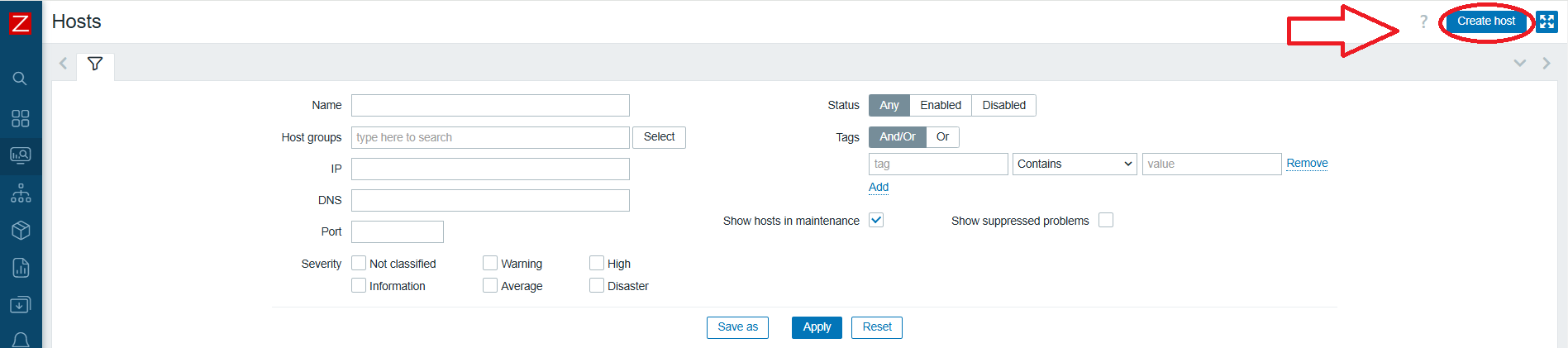
Aller sur \[MONITORING\] puis \[HOST\] et créer un nouvel host

[![image.png](https://book.techoops.fr/uploads/images/gallery/2025-01/scaled-1680-/M0fimage.png)](https://book.techoops.fr/uploads/images/gallery/2025-01/M0fimage.png)
[<span style="background-color: rgb(0, 0, 0);">![image.png](https://book.techoops.fr/uploads/images/gallery/2025-01/scaled-1680-/GIOimage.png)</span>](https://book.techoops.fr/uploads/images/gallery/2025-01/GIOimage.png)
[![image.png](https://book.techoops.fr/uploads/images/gallery/2025-01/scaled-1680-/n9Mimage.png)](https://book.techoops.fr/uploads/images/gallery/2025-01/n9Mimage.png)
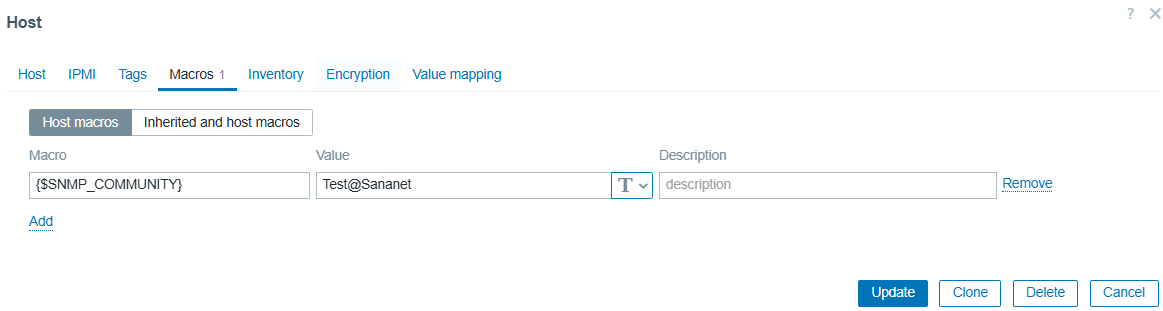
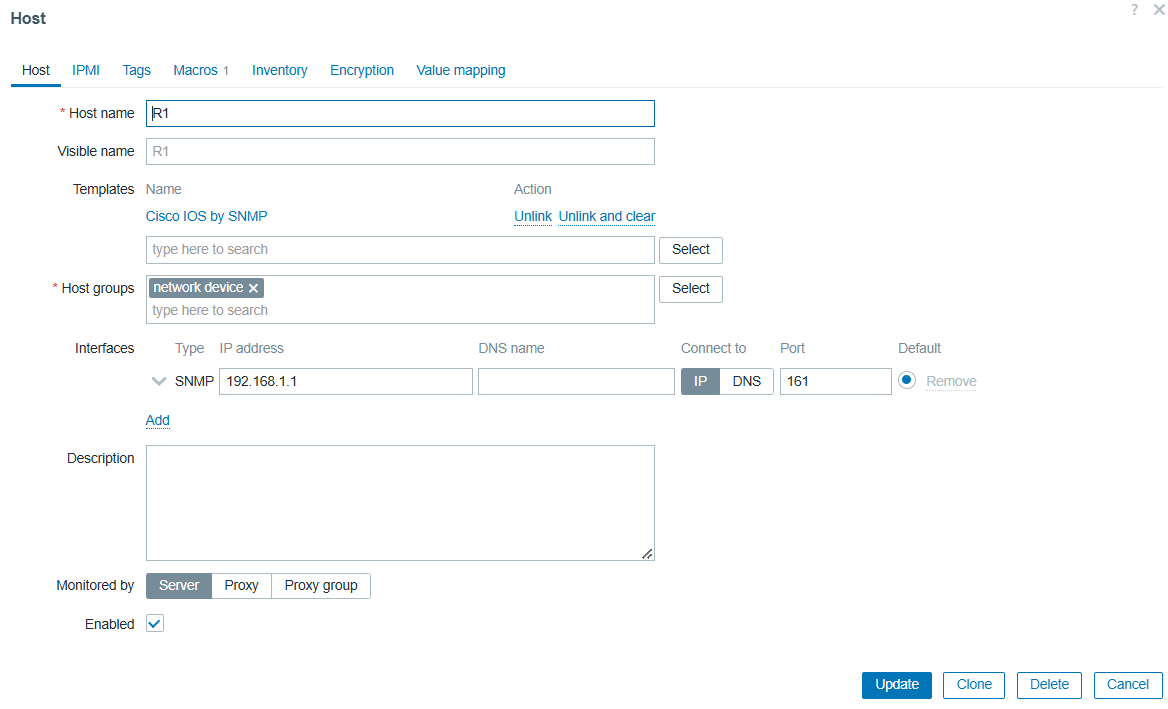
Suivez la configuration, une fois fini vérifier que tout fonctionne

Aller à nouveau sur \[MONITORING\] puis \[HOST\] et regarder que cette ligne apparait bien avec le protocole SNMP de up

[![image.png](https://book.techoops.fr/uploads/images/gallery/2025-01/scaled-1680-/XJmimage.png)](https://book.techoops.fr/uploads/images/gallery/2025-01/XJmimage.png)
