# PROXMOX

# 1 - Initiation

# 1 -  Installation de PROXMOX

# <span style="text-decoration: underline;">Proxmox c’est quoi ?</span>

*Proxmox Virtual Environnement est une solution de virtualisation libre (licence AGPLv3) basée sur l’hyperviseur Linux KVM, et offre aussi une solution de containers avec LXC. Elle propose un support payant.*

- #### Installation

Dans un premier temps il faut télécharger Promox [https://www.proxmox.com/en/downloads/category/iso-images-pve](https://www.proxmox.com/en/downloads/category/iso-images-pve).

1. 1. Lancer l'installation sur vmware.
    2. Sélectionner le bon OS dans notre cas ce sera **Linux** et **Debian 11.**[![image.png](https://book.techoops.fr/uploads/images/gallery/2023-06/scaled-1680-/image.png)](https://book.techoops.fr/uploads/images/gallery/2023-06/image.png)
    3. Nommer la machine, je l’appellerai pve-front-01.[![image.png](https://book.techoops.fr/uploads/images/gallery/2023-06/scaled-1680-/L4simage.png)](https://book.techoops.fr/uploads/images/gallery/2023-06/L4simage.png)
    4. Mettre le nombre de processeur souhaités
    5. Mettre au minimum 4 Go de RAM.
    6. On peut mettre NAT ou bridge dans Network Connection.
    7. Pour le disque il faudra minimum 50 Go.
    8. Ne pas démarrer de suite la VM et customiser cette dernière.[![image.png](https://book.techoops.fr/uploads/images/gallery/2023-06/scaled-1680-/7kGimage.png)](https://book.techoops.fr/uploads/images/gallery/2023-06/7kGimage.png)
    9. Aller modifier les paramètres de la VM et modifier le processeur afin de cocher la virtualisation.[![image.png](https://book.techoops.fr/uploads/images/gallery/2023-06/scaled-1680-/OTtimage.png)](https://book.techoops.fr/uploads/images/gallery/2023-06/OTtimage.png)
    10. Démarrer la VM.
    11. sélectionner Install Proxmox en mode graphique.
    12. Accepter la License.
    13. Laisser pas défaut le disque.
    14. Configurer le pays et la région, ici se sera France et Europe/Paris.
    15. Créer un mot de passe pour l'utilisateur root (Je conseil Espoir15).
    16. Nommer le serveur.[![image.png](https://book.techoops.fr/uploads/images/gallery/2023-06/scaled-1680-/IAJimage.png)](https://book.techoops.fr/uploads/images/gallery/2023-06/IAJimage.png)
    17. Installer le serveur en cliquant sur install.
    18. Vous pourrez après l'installation vous rendre sur le navigateur de votre choi et taper https://**IP\_DU\_SERVEUR**:8006. L'utilisateur est root et le mot de passe celui que vous avez choisi lors de l'installation.

- #### Création des interface réseau

*Afin de pouvoir communiquer entre elle les VMs ou en encore les conteneur que vous allez créer vont avoir besoin d'un accès réseau. Ici deux choix s'offre à nous:*

1. *Laisser comme tel, ainsi nous serons bridgé sur le même réseau que le Proxmox.*
2. *Ajouter un nouveau switch virtuel afin d'isoler les VMs/conteneurs que nous allons créer.*

*Nous allons opter pour la création d'un nouveau switch.*

##### *Création de l'interface vmbr1:*

1. État actuel du serveur.  
    [![image.png](https://book.techoops.fr/uploads/images/gallery/2023-06/scaled-1680-/I2kimage.png)](https://book.techoops.fr/uploads/images/gallery/2023-06/I2kimage.png)*Ici nous pouvons voire qu'il existe déjà un switch virtuel c'est celui qui nous permet d'accéder à notre Proxmox et à ce dernier un accès internet.*
2. **Ajouter les interfaces réseaux (vmnet) au serveur(s) Proxmox(s).** [![image.png](https://book.techoops.fr/uploads/images/gallery/2023-06/scaled-1680-/0LPimage.png)](https://book.techoops.fr/uploads/images/gallery/2023-06/0LPimage.png)
    
    [![image.png](https://book.techoops.fr/uploads/images/gallery/2023-06/scaled-1680-/5tvimage.png)](https://book.techoops.fr/uploads/images/gallery/2023-06/5tvimage.png)
    
    [![image.png](https://book.techoops.fr/uploads/images/gallery/2023-06/scaled-1680-/inCimage.png)](https://book.techoops.fr/uploads/images/gallery/2023-06/inCimage.png)
    
    [![image.png](https://book.techoops.fr/uploads/images/gallery/2023-06/scaled-1680-/w3mimage.png)](https://book.techoops.fr/uploads/images/gallery/2023-06/w3mimage.png)

<p class="callout info">Actuellement en créant une machine et en lui affectant pour switch vmbr1, cette dernière n'aura accès qu'au machines connectée sur ce même switch.  
Pour que les machines soit isolée sur un réseau local mais qu'elles aient un accès à internet, on peut mettre en place un firewall.   
  
Je vous propose de suivre le tutoriel suivant pour la mise en place du firewall [OPNSENSE](https://book.techoops.fr/books/firewall-linux/page/installation-sur-proxmox "OPNsense").  
</p>

# Installation d'une VM

### Installation d'une VM Debian 12 sur Proxmox.  


#### Prérequis:

- Avoir un serveur Proxmox
- Avoir un ISO de la dernière version de Debian (Version 12, Bookworm actuellement).  
    On peut trouver l'ISO [Ici.](https://cdimage.debian.org/debian-cd/current/amd64/iso-cd/debian-12.0.0-amd64-netinst.iso "Latest deb version")

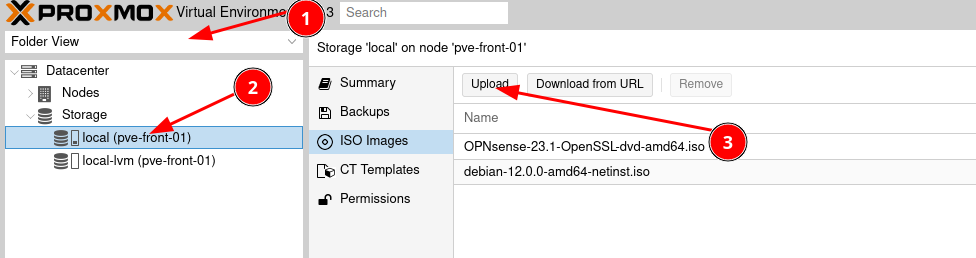
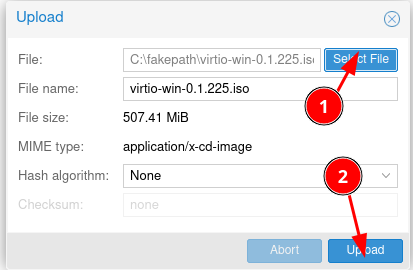
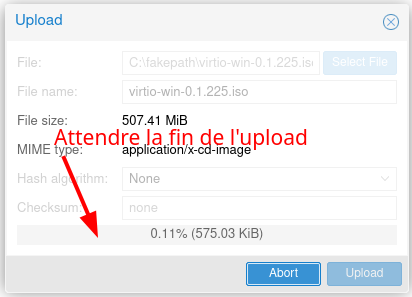
1. Upload de L'ISO sur le serveur.  
    [![image.png](https://book.techoops.fr/uploads/images/gallery/2023-06/scaled-1680-/X7qimage.png)](https://book.techoops.fr/uploads/images/gallery/2023-06/X7qimage.png)
    
    [![image.png](https://book.techoops.fr/uploads/images/gallery/2023-06/scaled-1680-/vQMimage.png)](https://book.techoops.fr/uploads/images/gallery/2023-06/vQMimage.png)
    
    [![image.png](https://book.techoops.fr/uploads/images/gallery/2023-06/scaled-1680-/vxNimage.png)](https://book.techoops.fr/uploads/images/gallery/2023-06/vxNimage.png)
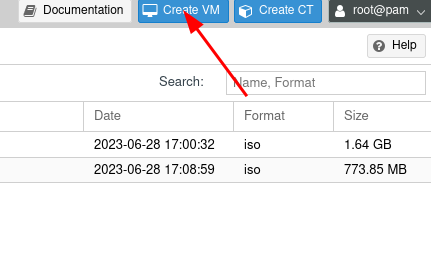
2. Création de la VM.  
    [![image.png](https://book.techoops.fr/uploads/images/gallery/2023-06/scaled-1680-/NGsimage.png)](https://book.techoops.fr/uploads/images/gallery/2023-06/NGsimage.png)
    
    
    - Nommer sa VM  
        [![image.png](https://book.techoops.fr/uploads/images/gallery/2023-06/scaled-1680-/PzPimage.png)](https://book.techoops.fr/uploads/images/gallery/2023-06/PzPimage.png)
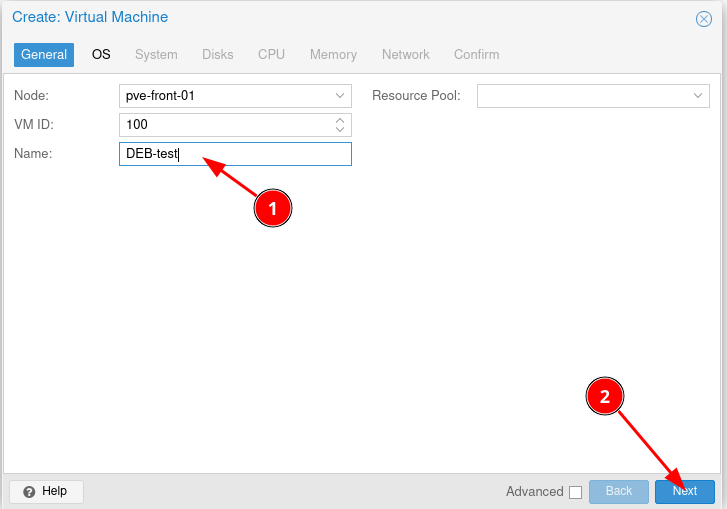
    - Sélection de l'OS et de l'ISO  
        [![image.png](https://book.techoops.fr/uploads/images/gallery/2023-06/scaled-1680-/CWGimage.png)](https://book.techoops.fr/uploads/images/gallery/2023-06/CWGimage.png)
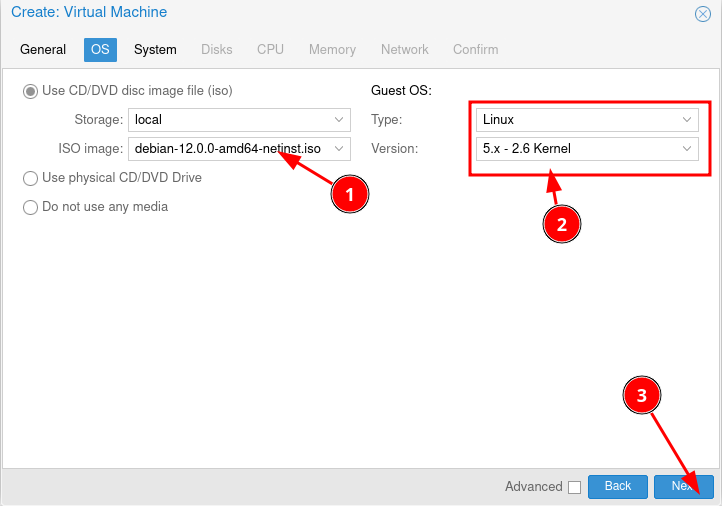
    - Sur la partie système faites Next.
    - Définition de la taille du disque mettre 8Go (c'est un test pas de la production)  
        [![image.png](https://book.techoops.fr/uploads/images/gallery/2023-06/scaled-1680-/oPmimage.png)](https://book.techoops.fr/uploads/images/gallery/2023-06/oPmimage.png)
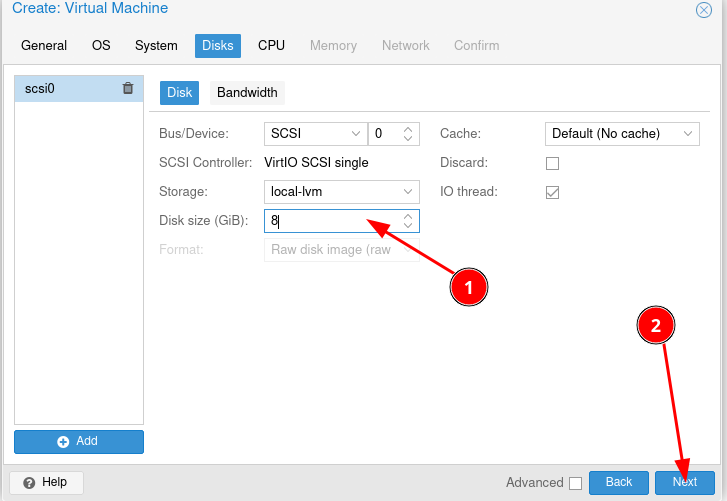
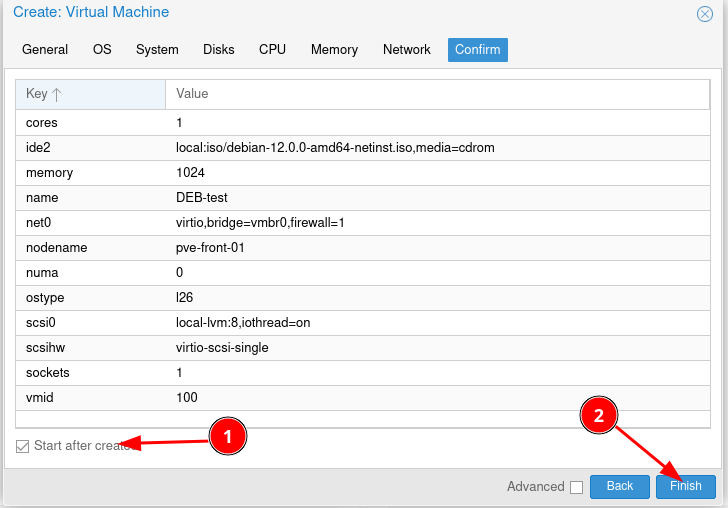
    - Choisissez le nombre de CPU et de coeurs souhaitées (en modifiant les CPU j'ai déjà eu des soucis préférer la modification des cœurs).
    - Définir la mémoire souhaitée (1024 fera très bien l'affaire pour ce test).
    - Connecter la future machine sur un switch pour ce test définir le switch sur vmbr0 ainsi le réseau sera le même que le serveur Proxmox.
    - On peut cocher la case start after created pour démarrer la Vm directement.  
        [![image.png](https://book.techoops.fr/uploads/images/gallery/2023-06/scaled-1680-/1sUimage.png)](https://book.techoops.fr/uploads/images/gallery/2023-06/1sUimage.png)
3. Accès à la VM. 
    - Soit par la console web.  
        [![image.png](https://book.techoops.fr/uploads/images/gallery/2023-06/scaled-1680-/iC9image.png)](https://book.techoops.fr/uploads/images/gallery/2023-06/iC9image.png)

    - Soit accès en SSH avec l'IP du serveur.  
        ```bash
         kvega@fr-lap10398  ~  ssh kvega@192.168.1.74                                                                                            
         
        The authenticity of host '192.168.1.74 (192.168.1.74)' can't be established.
        ED25519 key fingerprint is SHA256:ABGWoRK+euXlyaXS6QPac0ta378u/5dAsCqJ3EnfuQU.
        This key is not known by any other names
        Are you sure you want to continue connecting (yes/no/[fingerprint])? yes
        Warning: Permanently added '192.168.1.74' (ED25519) to the list of known hosts.
        kvega@192.168.1.74's password:
        Linux debian-test 6.1.0-9-amd64 #1 SMP PREEMPT_DYNAMIC Debian 6.1.27-1 (2023-05-08) x86_64
        
        The programs included with the Debian GNU/Linux system are free software;
        the exact distribution terms for each program are described in the
        individual files in /usr/share/doc/*/copyright.
        
        Debian GNU/Linux comes with ABSOLUTELY NO WARRANTY, to the extent
        permitted by applicable law.
        Last login: Wed Jun 28 18:03:03 2023
        kvega@debian-test:~$ su -
        Mot de passe :
        root@debian-test:~#
        ```
        
          
        <p class="callout warning">Si vous choisissez le SSH il faudra vous connecter avec l'utilisateur que vous avez créé pendant l'installation et récupérer l'IP du serveur.</p>

<p class="callout success">Voilà votre première Vm est créée !!</p>

# AJOUT DE STOCKAGE

#### Prérequis

- Avoir un proxmo
- Avoir de l'espace sur son disque

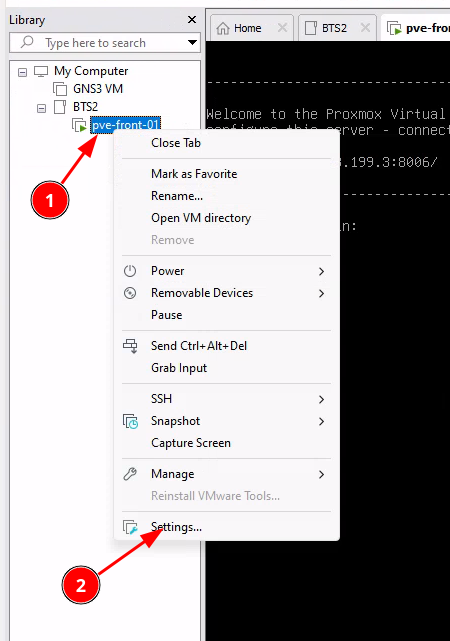
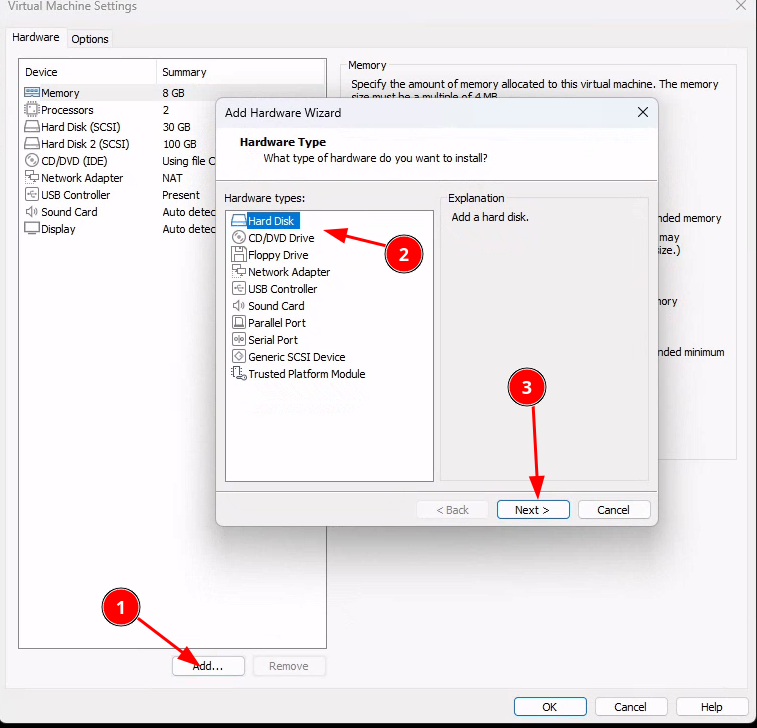
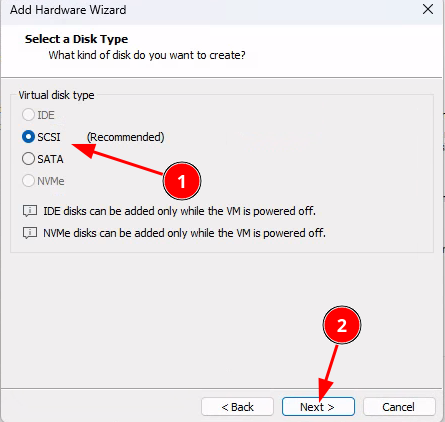
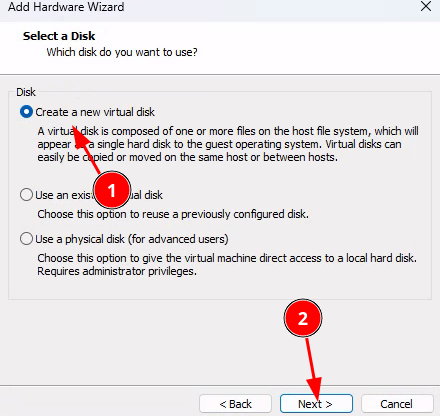
#### Ajout du disque sur le logiciel de virtualisation

- Ajout du disque  
    [![image.png](https://book.techoops.fr/uploads/images/gallery/2023-11/scaled-1680-/EnVimage.png)](https://book.techoops.fr/uploads/images/gallery/2023-11/EnVimage.png)
    
    [![image.png](https://book.techoops.fr/uploads/images/gallery/2023-11/scaled-1680-/UQFimage.png)](https://book.techoops.fr/uploads/images/gallery/2023-11/UQFimage.png)
    
    [![image.png](https://book.techoops.fr/uploads/images/gallery/2023-11/scaled-1680-/vX6image.png)](https://book.techoops.fr/uploads/images/gallery/2023-11/vX6image.png)
    
    [![image.png](https://book.techoops.fr/uploads/images/gallery/2023-11/scaled-1680-/s1Cimage.png)](https://book.techoops.fr/uploads/images/gallery/2023-11/s1Cimage.png)
    
    [![image.png](https://book.techoops.fr/uploads/images/gallery/2023-11/scaled-1680-/h1kimage.png)](https://book.techoops.fr/uploads/images/gallery/2023-11/h1kimage.png)
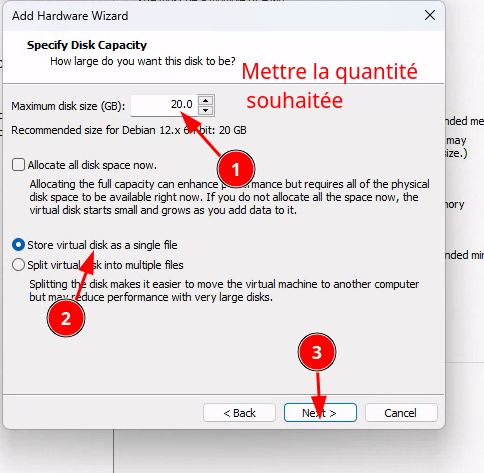
    
    [![image.png](https://book.techoops.fr/uploads/images/gallery/2023-11/scaled-1680-/WNYimage.png)](https://book.techoops.fr/uploads/images/gallery/2023-11/WNYimage.png)
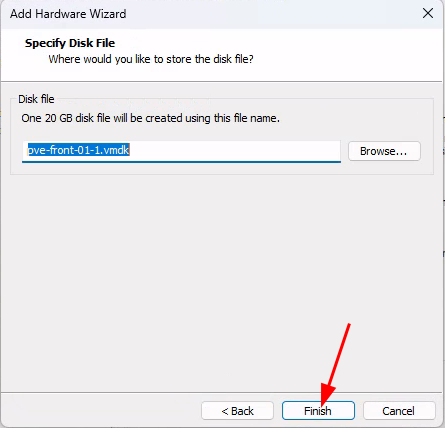
- Redémarrez le serveur Proxmox
- Paramétrez le nouveau disque dans la console web de Proxmox 
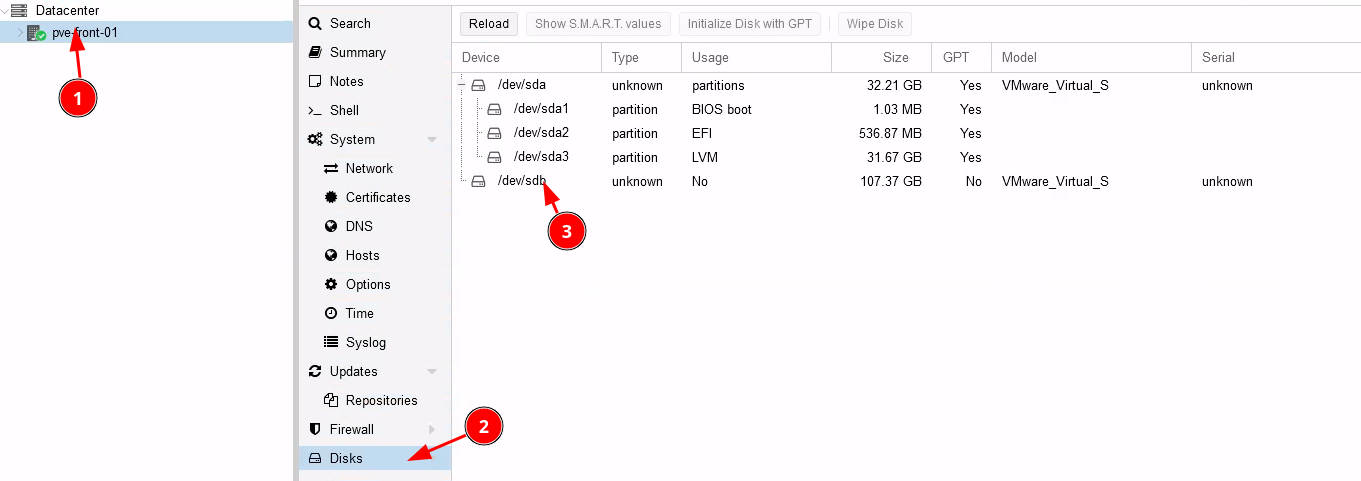
    - Vérifiez que le disque est visible  
        [![image.png](https://book.techoops.fr/uploads/images/gallery/2023-11/scaled-1680-/bcNimage.png)](https://book.techoops.fr/uploads/images/gallery/2023-11/bcNimage.png)
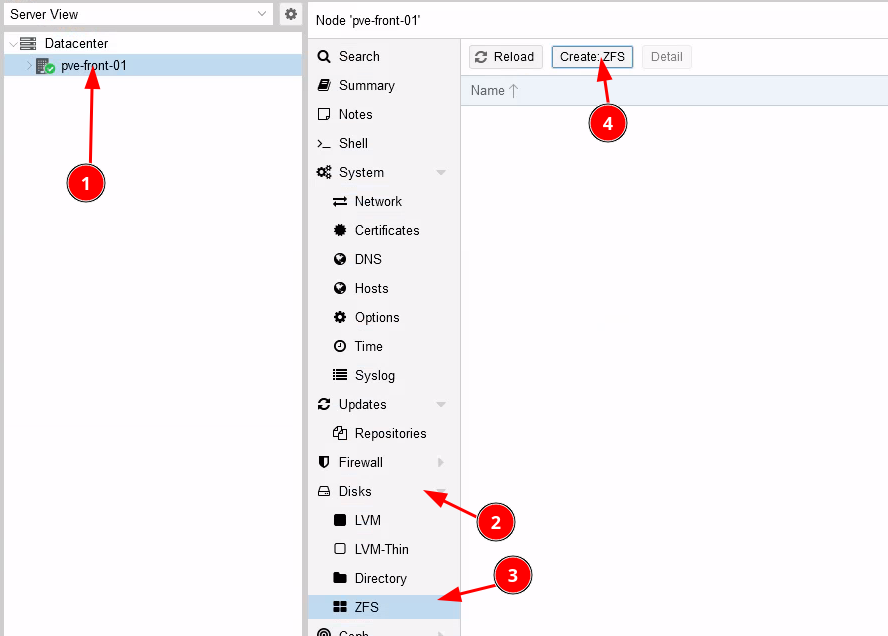
    - Paramétrez le nouveau disque en ZFS afin qu'il puisse servir de stockage pour les VMS  
        [![image.png](https://book.techoops.fr/uploads/images/gallery/2023-11/scaled-1680-/52limage.png)](https://book.techoops.fr/uploads/images/gallery/2023-11/52limage.png)
        
        [![image.png](https://book.techoops.fr/uploads/images/gallery/2023-11/scaled-1680-/Bveimage.png)](https://book.techoops.fr/uploads/images/gallery/2023-11/Bveimage.png)
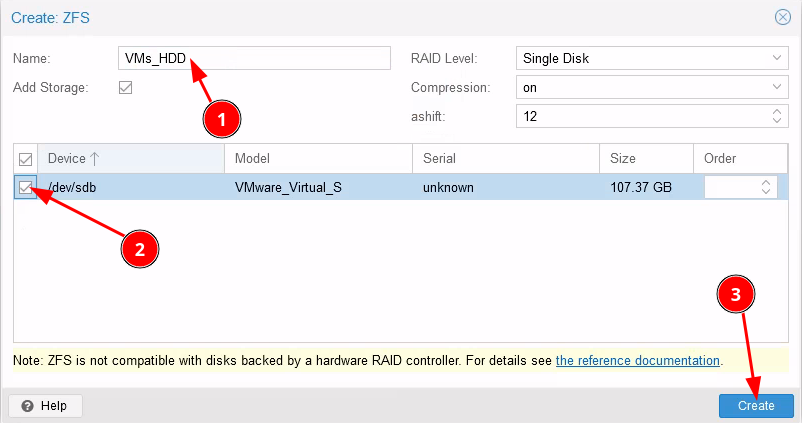
<p class="callout success align-center">[![image.png](https://book.techoops.fr/uploads/images/gallery/2023-11/scaled-1680-/U2rimage.png)](https://book.techoops.fr/uploads/images/gallery/2023-11/U2rimage.png)  
**Le disque est créé !!**  
</p>

# 2- Initialisation d'un cluster Proxmox

### Prérequis:

- Avoir au moins 3 hyperviseurs Proxmox
- Chaque Hyperviseur doit être accessible sur le réseau
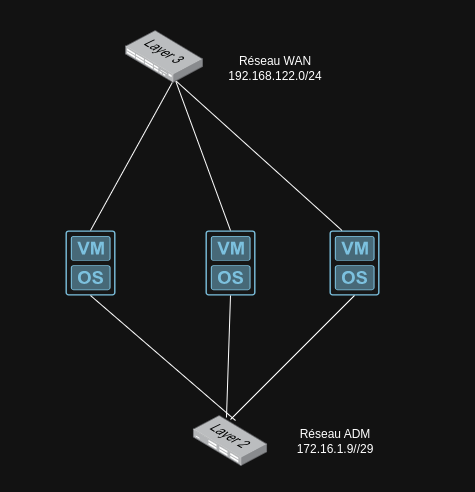
- Une seconde interface réseau connectant les serveurs entre eux

#### Schéma:  


[![image.png](https://book.techoops.fr/uploads/images/gallery/2025-05/scaled-1680-/image.png)](https://book.techoops.fr/uploads/images/gallery/2025-05/image.png)
### Mise en place du réseau ADM:

1. Ajout du switch virtuel sur chaque Proxmox  
    [![image.png](https://book.techoops.fr/uploads/images/gallery/2025-05/scaled-1680-/SZBimage.png)](https://book.techoops.fr/uploads/images/gallery/2025-05/SZBimage.png)
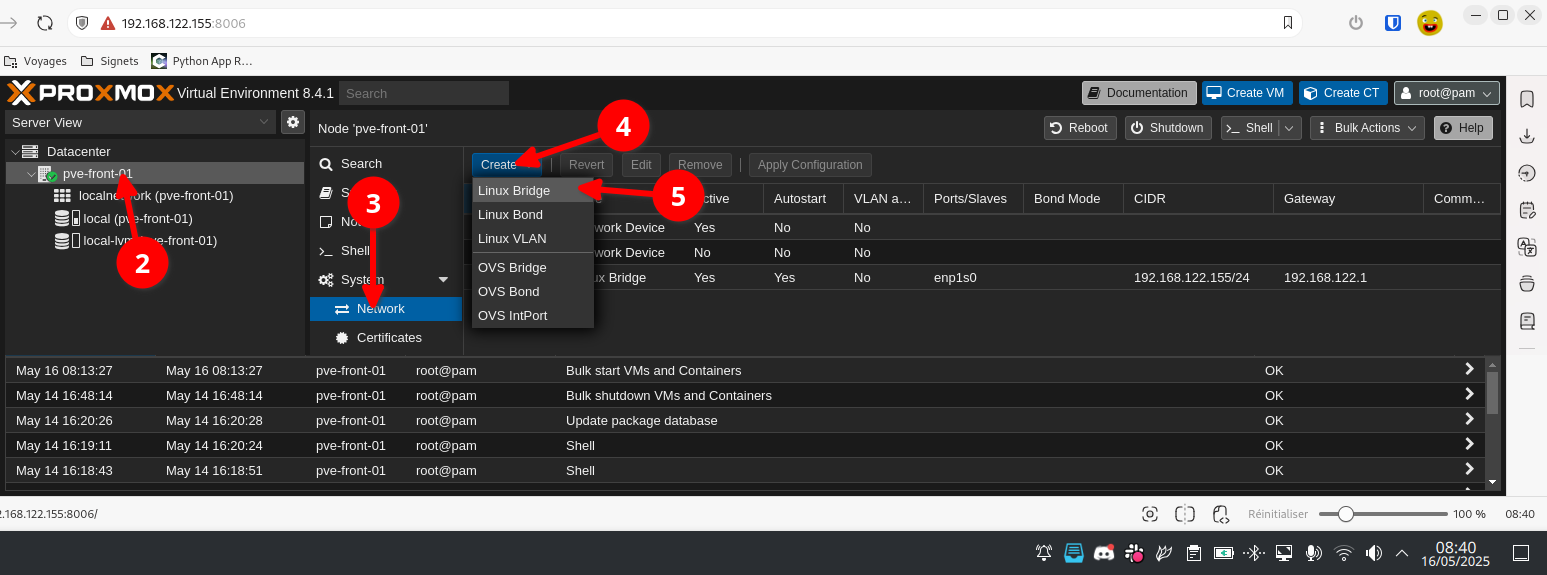
    
    [![image.png](https://book.techoops.fr/uploads/images/gallery/2025-05/scaled-1680-/sdhimage.png)](https://book.techoops.fr/uploads/images/gallery/2025-05/sdhimage.png)
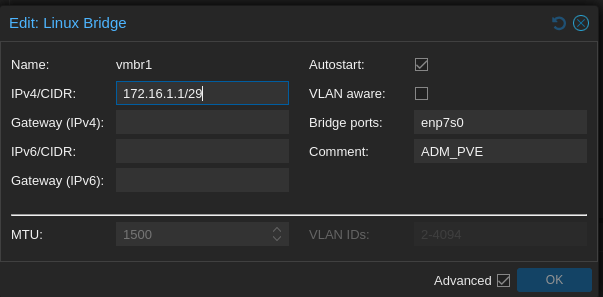
    
    [![image.png](https://book.techoops.fr/uploads/images/gallery/2025-05/scaled-1680-/DkUimage.png)](https://book.techoops.fr/uploads/images/gallery/2025-05/DkUimage.png)
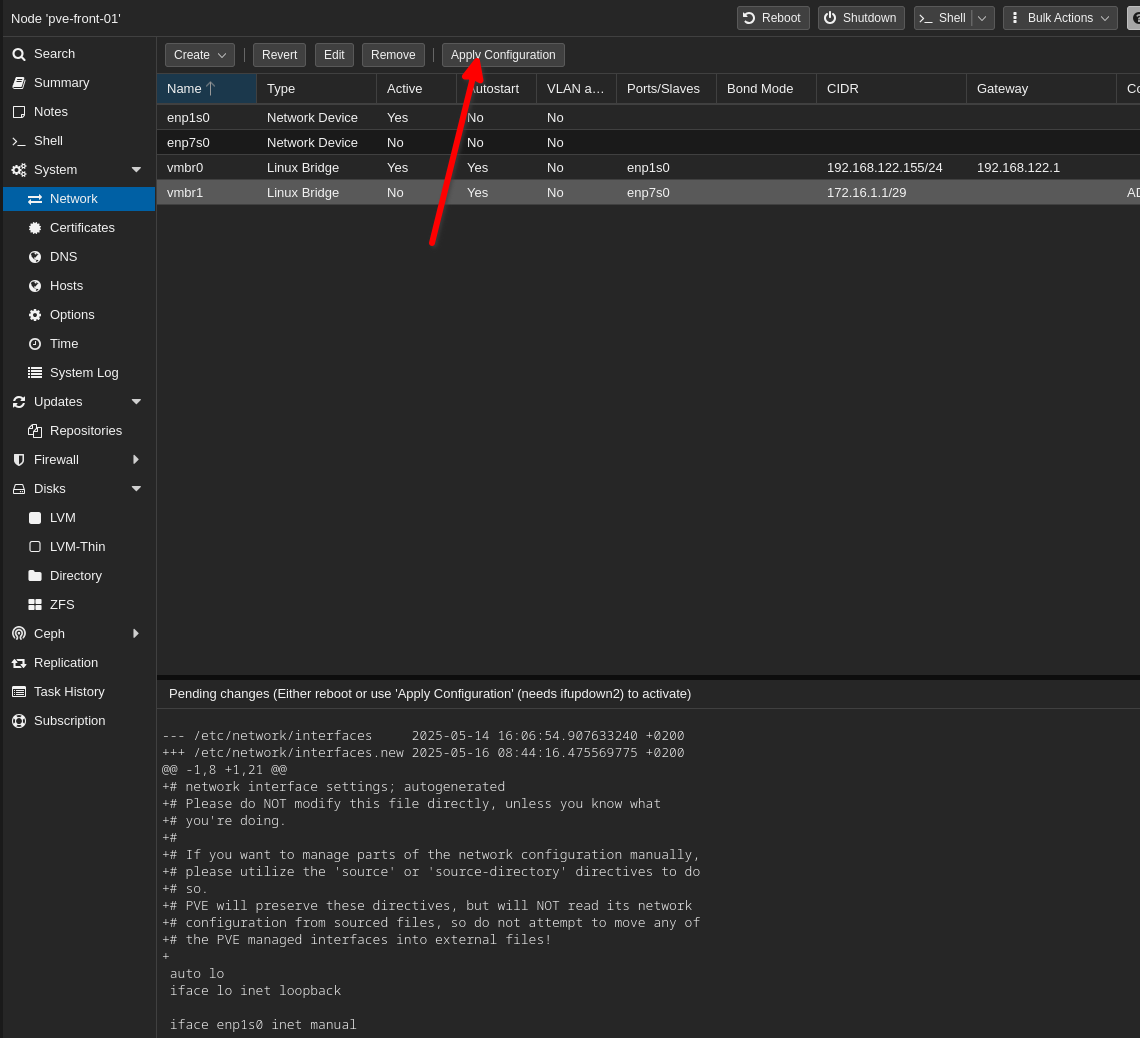
2. Test de la connectivité entre les Proxmox  
    ```bash
    root@pve-front-01:~# ping -c1 172.16.1.2
    PING 172.16.1.2 (172.16.1.2) 56(84) bytes of data.
    64 bytes from 172.16.1.2: icmp_seq=1 ttl=64 time=0.279 ms
    
    --- 172.16.1.2 ping statistics ---
    1 packets transmitted, 1 received, 0% packet loss, time 0ms
    rtt min/avg/max/mdev = 0.279/0.279/0.279/0.000 ms
    root@pve-front-01:~# ping -c1 172.16.1.3
    PING 172.16.1.3 (172.16.1.3) 56(84) bytes of data.
    64 bytes from 172.16.1.3: icmp_seq=1 ttl=64 time=0.238 ms
    
    --- 172.16.1.3 ping statistics ---
    1 packets transmitted, 1 received, 0% packet loss, time 0ms
    rtt min/avg/max/mdev = 0.238/0.238/0.238/0.000 ms
    root@pve-front-01:~# 
    ```

### Mise en place du cluster

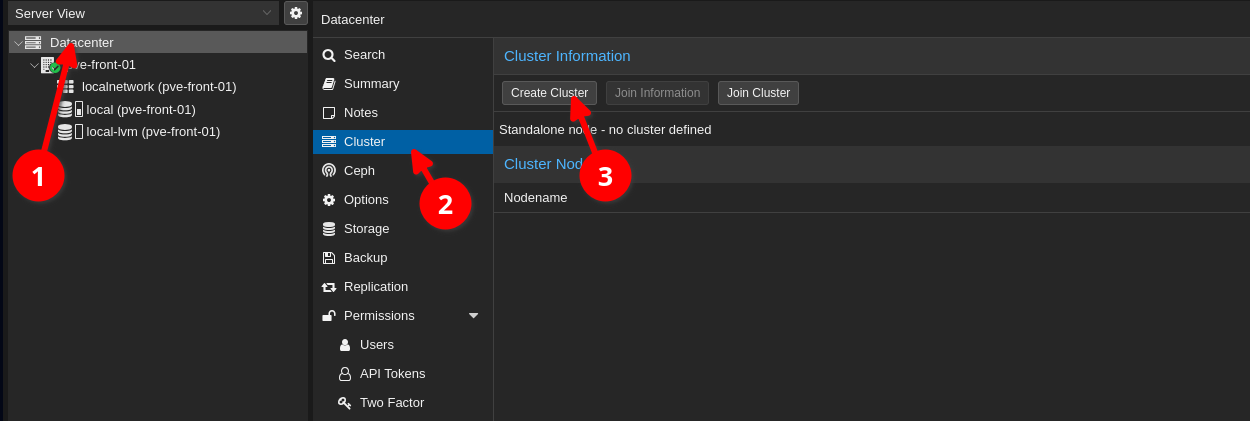
1. Initialisation du cluster  
    [![image.png](https://book.techoops.fr/uploads/images/gallery/2025-06/scaled-1680-/image.png)](https://book.techoops.fr/uploads/images/gallery/2025-06/image.png)
2. Nomage du cluster  
    [![image.png](https://book.techoops.fr/uploads/images/gallery/2025-06/scaled-1680-/KhSimage.png)](https://book.techoops.fr/uploads/images/gallery/2025-06/KhSimage.png)  
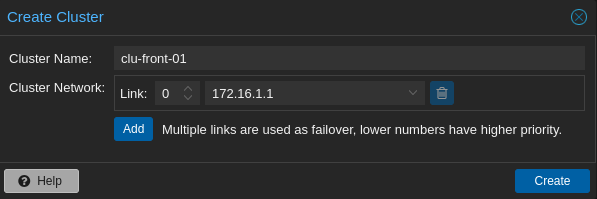
    Attendre que le processus soit terminé
3. Récuperer les informations de jonction les notés dans un endroit sûr.  
    [![image.png](https://book.techoops.fr/uploads/images/gallery/2025-06/scaled-1680-/Hgnimage.png)](https://book.techoops.fr/uploads/images/gallery/2025-06/Hgnimage.png)

4. Joindre les noeud au cluster  
    [![image.png](https://book.techoops.fr/uploads/images/gallery/2025-06/scaled-1680-/l50image.png)](https://book.techoops.fr/uploads/images/gallery/2025-06/l50image.png)
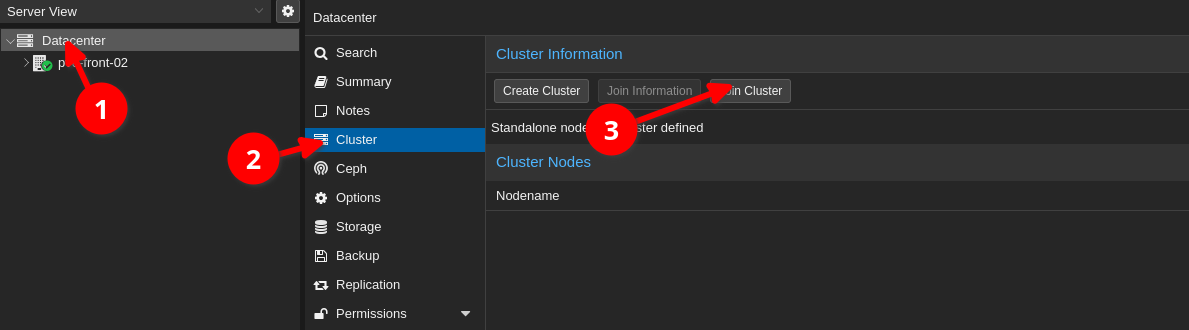
    
    [![image.png](https://book.techoops.fr/uploads/images/gallery/2025-06/scaled-1680-/56aimage.png)](https://book.techoops.fr/uploads/images/gallery/2025-06/56aimage.png)
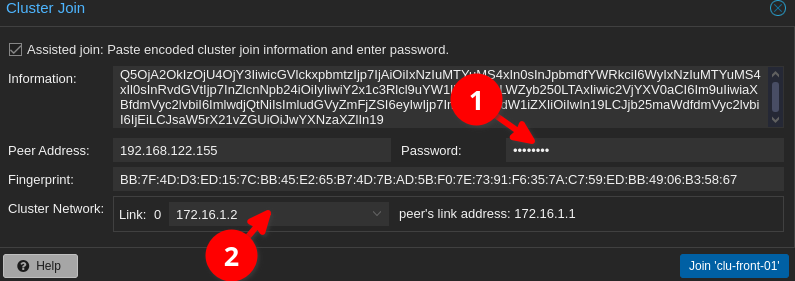
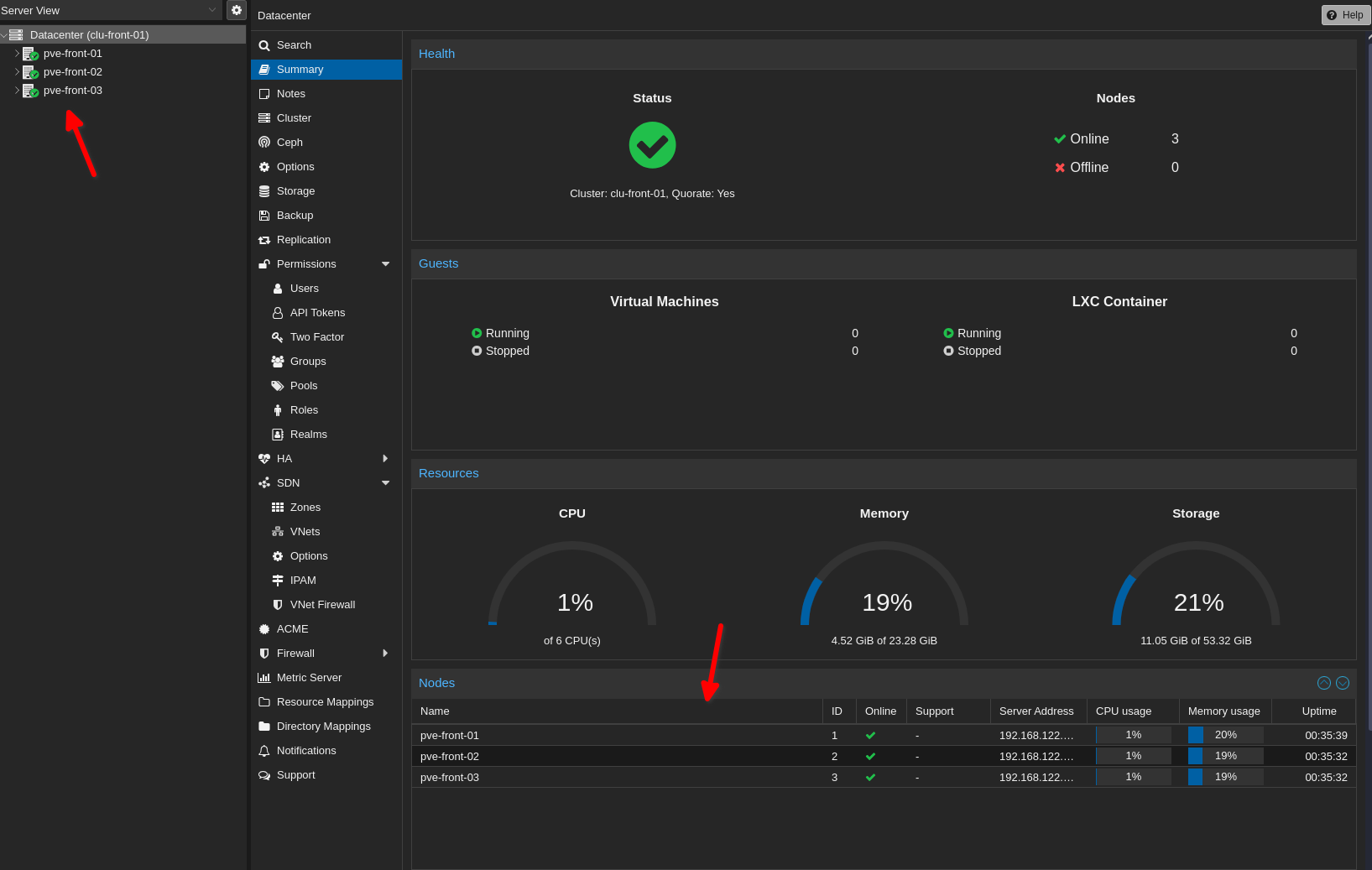
5. Ajouter tout les cluster  
    [![image.png](https://book.techoops.fr/uploads/images/gallery/2025-06/scaled-1680-/ynUimage.png)](https://book.techoops.fr/uploads/images/gallery/2025-06/ynUimage.png)
# 3 - Installation du réseau (Privé)

### Prérequis:

- Avoir un cluster Proxmox
- Avoir branché un câble spécifique sur chaque nœud pour le réseau LAN.

### Mise en place du réseau LAN:

1. Ajout du switch virtuel sur chaque nœuds:  
    [![image.png](https://book.techoops.fr/uploads/images/gallery/2025-07/scaled-1680-/image.png)](https://book.techoops.fr/uploads/images/gallery/2025-07/image.png)  
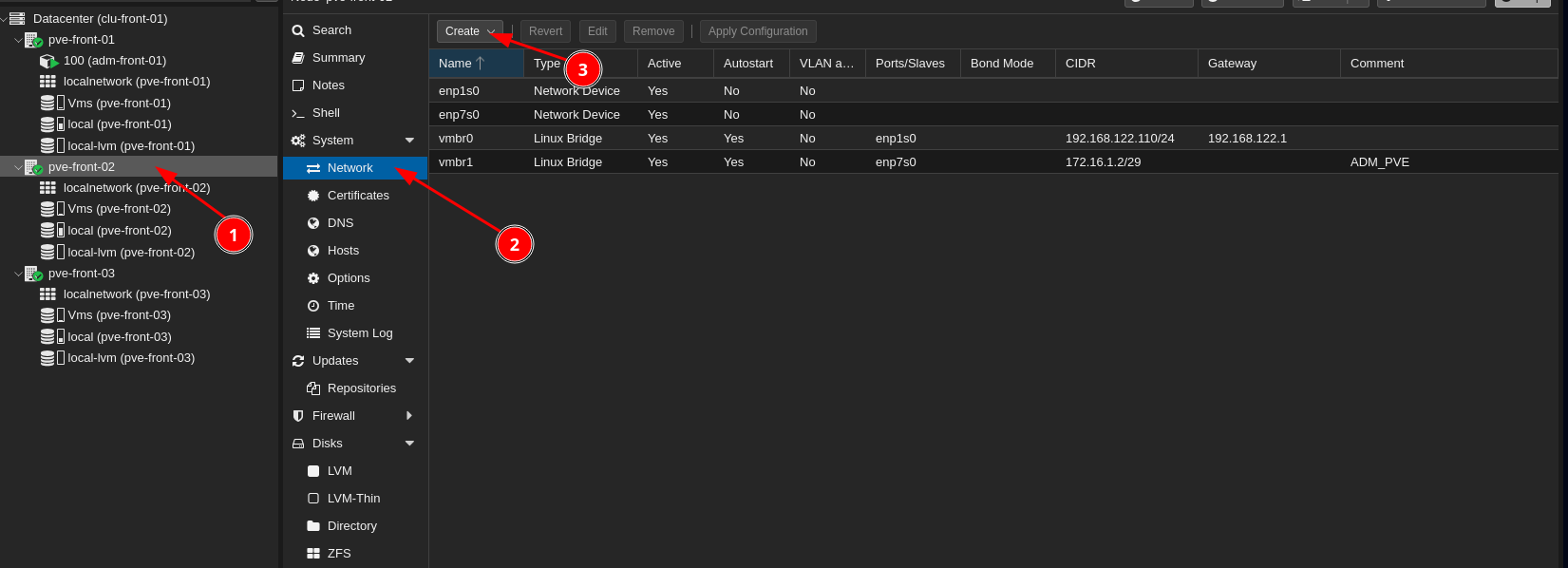
    [![image.png](https://book.techoops.fr/uploads/images/gallery/2025-07/scaled-1680-/v2Himage.png)](https://book.techoops.fr/uploads/images/gallery/2025-07/v2Himage.png)
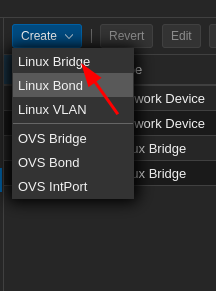
    
    [![image.png](https://book.techoops.fr/uploads/images/gallery/2025-07/scaled-1680-/IJKimage.png)](https://book.techoops.fr/uploads/images/gallery/2025-07/IJKimage.png)
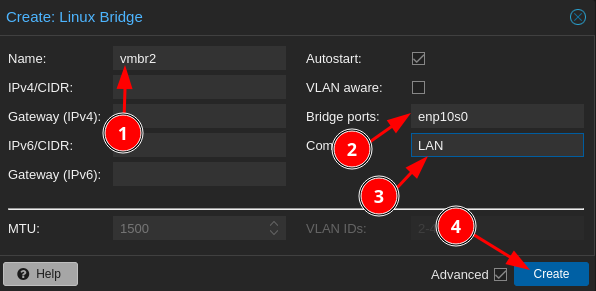
    
    [![image.png](https://book.techoops.fr/uploads/images/gallery/2025-07/scaled-1680-/qm2image.png)](https://book.techoops.fr/uploads/images/gallery/2025-07/qm2image.png)
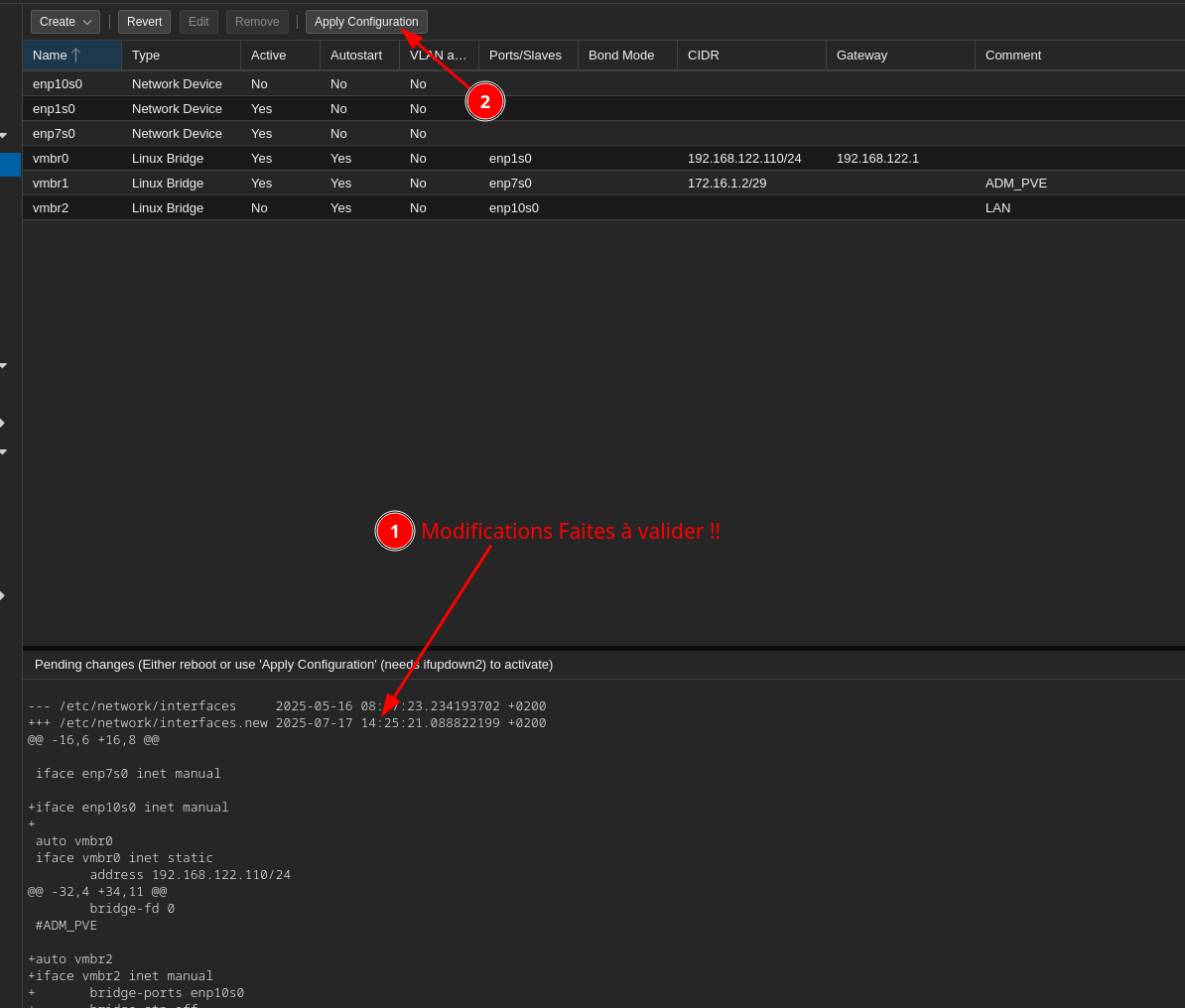
2. Faire les modifications sur tout les nœuds
3. Faire un test en faisant un PING entre deux VMs/LXC sur deux nœuds différents:  
    ```bash
    root@test2:~# ping 172.16.1.2 -c 1
    PING 172.16.1.2 (172.16.1.2) 56(84) bytes of data.
    64 bytes from 172.16.1.2: icmp_seq=1 ttl=64 time=0.147 ms
    
    --- 172.16.1.2 ping statistics ---
    1 packets transmitted, 1 received, 0% packet loss, time 0ms
    rtt min/avg/max/mdev = 0.147/0.147/0.147/0.000 ms
    ```

# 2- Automatisation

# Création d'un template Cloudinit

### Création d'un template avec cloud init.  


1. Se connecter à proxmox en SSH
2. Créer un dossier de travail:  
    [![image.png](https://book.techoops.fr/uploads/images/gallery/2023-07/scaled-1680-/image.png)](https://book.techoops.fr/uploads/images/gallery/2023-07/image.png)
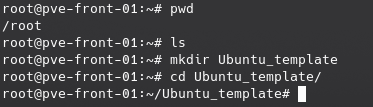
3. Téléchargement du template au choix Debian ou Ubuntu: 
    - Debian:   
        ```bash
         wget https://cloud.debian.org/images/cloud/bookworm/latest/debian-12-generic-amd64.qcow2
        ```
    - Ubuntu:  
        ```bash
        wget https://cloud-images.ubuntu.com/jammy/current/jammy-server-cloudimg-amd64.img
        ```
4. Je télécharge Ubuntu, si l'Os choisi est Debian alors il faudra dézipper ce qu'on aura téléchargé:  
    [![image.png](https://book.techoops.fr/uploads/images/gallery/2023-07/scaled-1680-/uXvimage.png)](https://book.techoops.fr/uploads/images/gallery/2023-07/uXvimage.png)

5. On va customiser notre image:  
    ```bash
    apt-get update && apt install -y libguestfs-tools
    ```


    1. 1. Installation de l'agent de liaison:  
            ```
            virt-customize -a jammy-server-cloudimg-amd64.img --install qemu-guest-agent
            ```
        2. Création d'un nouvel utilisateur:  
            ```
             virt-customize -a jammy-server-cloudimg-amd64.img  --run-command 'useradd kvega'
            #changer le mot de passe du user créé
            virt-customize -a debian-12-generic-amd64.qcow2 --run-command 'echo "kvega:PASSWORD" | chpasswd'
            # Creation de son Home
             virt-customize -a jammy-server-cloudimg-amd64.img  --run-command 'mkdir -p /home/kvega/.ssh'
            # Mise à jour des droits sur le home du user
            virt-customize -a jammy-server-cloudimg-amd64.img --run-command 'chown kvega:kvega /home/kvega'
            # Injection de la clé SSH pour la connexion
            virt-customize -a jammy-server-cloudimg-amd64.img --ssh-inject kvega:file:/root/.ssh/id_rsa.pub
            ```
6. On va créer un template pour nos futurs machines:  
    ```bash
    # CREATION DU TEMPLATE
    # Parametrage de la RAM et du CPU
    qm create 9001 --name 'Ubuntu22-Template' --memory 2048 --cores 2 --net0 virtio,bridge=vmbr0
    # Import du disque Init dans le template
    qm importdisk 9001 jammy-server-cloudimg-amd64.img local-lvm
    # parametrage du disque
    qm set 9001 --scsihw virtio-scsi-pci --scsi0 local-lvm:vm-9001-disk-0
    qm set 9001 --boot c --bootdisk scsi0
    # Creation du volume cloudinit
    qm set 9001 --ide2 local-lvm:cloudinit
    # Create de la console (serial)
    qm set 9001 --serial0 socket --vga serial0
    # Activation de l'agent
    qm set 9001 --agent enabled=1
    #Transforamtion de la vm en template
    qm template 9001
    ```
    
    A cette étape on a un template de créé:
    
    [![image.png](https://book.techoops.fr/uploads/images/gallery/2023-07/scaled-1680-/Ubximage.png)](https://book.techoops.fr/uploads/images/gallery/2023-07/Ubximage.png)
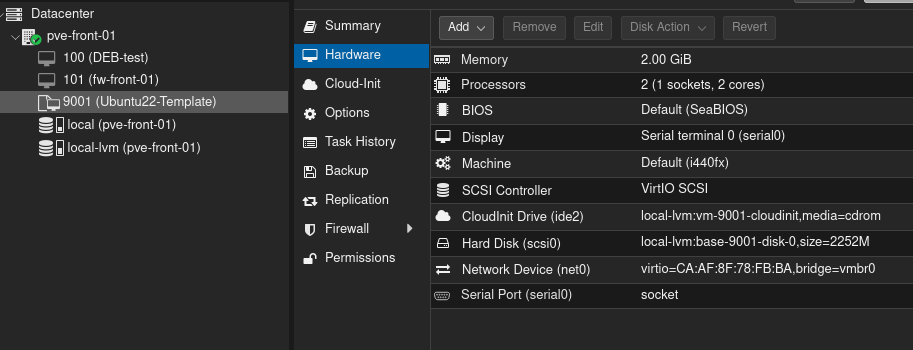
7. On va tester la création d'une VM via le template:  
    ```bash
    qm clone 9001 999 --name test-clone-cloud-init
    ```
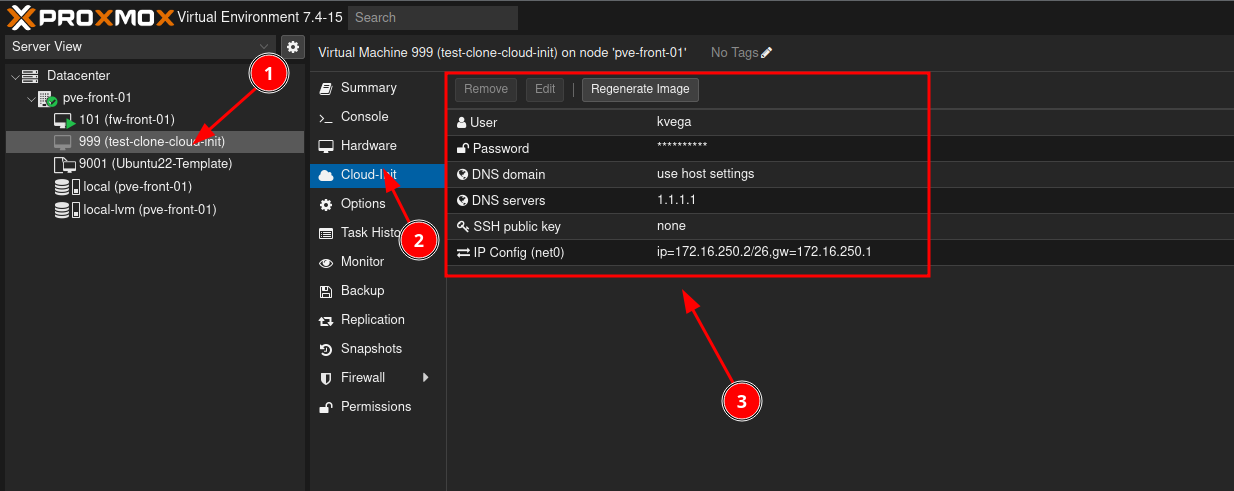
8. La VM est créée, on va modifier son IP et donner un mot de passe à notre utilisateur:
    
    [![image.png](https://book.techoops.fr/uploads/images/gallery/2023-07/scaled-1680-/sD3image.png)](https://book.techoops.fr/uploads/images/gallery/2023-07/sD3image.png)
# Création d'une VM Linux Avec Terraform

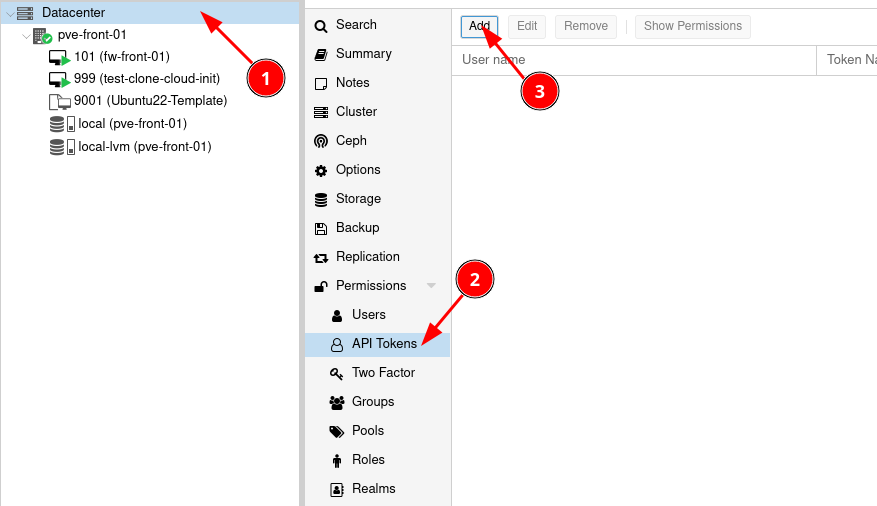
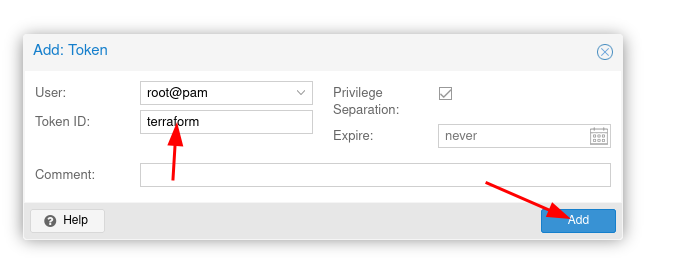
1. 1. Paramétrage de PROXMOX (création d'une clé d'API)  
        [![image.png](https://book.techoops.fr/uploads/images/gallery/2023-07/scaled-1680-/Ekcimage.png)](https://book.techoops.fr/uploads/images/gallery/2023-07/Ekcimage.png)
        
        [![image.png](https://book.techoops.fr/uploads/images/gallery/2023-07/scaled-1680-/ofSimage.png)](https://book.techoops.fr/uploads/images/gallery/2023-07/ofSimage.png)
        
        [![image.png](https://book.techoops.fr/uploads/images/gallery/2023-07/scaled-1680-/I3timage.png)](https://book.techoops.fr/uploads/images/gallery/2023-07/I3timage.png)  
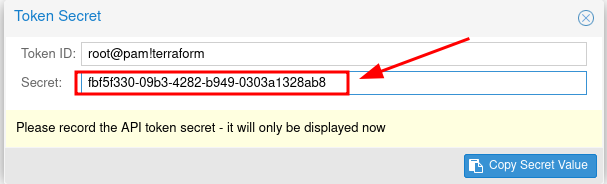
        <span style="background-color: rgb(255, 255, 255); color: rgb(224, 62, 45);">**Attention Il faut bien noté le token !!**</span>
    2. <span style="background-color: rgb(255, 255, 255); color: rgb(0, 0, 0);"> Installation de TERRAFORM sur une DEBIAN (Créer un container de management)</span>
        1. <span style="background-color: rgb(255, 255, 255); color: rgb(0, 0, 0);">Suivre la documentation officielle [https://developer.hashicorp.com/terraform/tutorials/aws-get-started/install-cli](https://developer.hashicorp.com/terraform/tutorials/aws-get-started/install-cli)</span>
        2. <span style="background-color: rgb(255, 255, 255); color: rgb(0, 0, 0);"><span style="background-color: rgb(255, 255, 255); color: rgb(0, 0, 0);">Vérifier l'installation de TERRAFORM:  
            </span></span>```bash
            root@MGT-FRONT-01:~# terraform -v
            Terraform v1.5.2
            on linux_amd64
            ```
    3. Premier déploiement de machine 
        1. Créer un dossier de travail:  
            ```bash
            mkdir VM_CREATION && cd VM_CREATION
            ```
        2. On va créer un fichier provider.tf ce fichier va référencer les module que nous utiliserons pour la création des VM.  
            ```
            # Creation du fichier provider.tf
            nano provider.tf
            ```
            
            Contenu du fichier:
            
            ```bash
            terraform {
              required_providers {
                proxmox = {
                  source = "telmate/proxmox"
                  version = "2.7.4"
                }
              }
            }
            provider "proxmox" {
              # url de Proxmox
              pm_api_url = "https://192.168.1.179:8006/api2/json"
              # api token id is in the form of: <username>@pam!<tokenId>
              pm_tls_insecure = true
              pm_parallel = 2
              pm_user="root@pam"
              pm_password="Espoir15"
            }
            ```
        3. On créer le fichier web.tf:  
            ```bash
            nano web.tf
            ```
            
            Contenu du fichier:
            
            ```bash
            resource "proxmox_vm_qemu" "web-server-1" {
              count = 1
              name = "web-front-01"
              target_node = "pve-front-01"
              vmid = "0"
              clone = "Ubuntu22-Template"
              full_clone = "true"
              agent = 1
              os_type = "cloud-init"
              cores = 1
              sockets = 1
              cpu = "kvm64"
              oncreate = true
            
              memory = 1024
              scsihw = "virtio-scsi-pci"
              bootdisk = "scsi0"
              disk {
                slot = 0
                size = "8G"
                type = "scsi"
                storage = "local-lvm"
                iothread = 0
              }
            
              network {
                model = "virtio"
                bridge = "vmbr1"
              }
            
              lifecycle {
                ignore_changes = [
                  network,
                ]
              }
            
              ipconfig0 = "ip=172.16.250.3/24,gw=172.16.250.1"
              #Si vous avez des clés SSH vous pouvez les mettre ici
              sshkeys = <<EOF
                ssh-ed25519 AAAAC3NzaC1lZDI1NTE5AAAAIIeq/iHCth8j1aKG/DMq0rd3bveLgqksAkwBOhYgAFG1 kvega@fr-lap10398
              EOF
            }
            ```
            
            <p class="callout info">source du provider terraform [PROVIDER-TERRAFORM](https://registry.terraform.io/providers/Telmate/proxmox/2.6.3/docs)  
            </p>
            
            
            1. Initialisation du dossier:  
                ```bash
                root@MGT-FRONT-01:~# terraform init 
                
                Initializing the backend...
                
                Initializing provider plugins...
                - Finding latest version of telmate/proxmox...
                - Installing telmate/proxmox v2.9.14...
                - Installed telmate/proxmox v2.9.14 (self-signed, key ID A9EBBE091B35AFCE)
                
                Partner and community providers are signed by their developers.
                If you'd like to know more about provider signing, you can read about it here:
                https://www.terraform.io/docs/cli/plugins/signing.html
                
                Terraform has created a lock file .terraform.lock.hcl to record the provider
                selections it made above. Include this file in your version control repository
                so that Terraform can guarantee to make the same selections by default when
                you run "terraform init" in the future.
                
                Terraform has been successfully initialized!
                
                You may now begin working with Terraform. Try running "terraform plan" to see
                any changes that are required for your infrastructure. All Terraform commands
                should now work.
                
                If you ever set or change modules or backend configuration for Terraform,
                rerun this command to reinitialize your working directory. If you forget, other
                commands will detect it and remind you to do so if necessary.
                ```
            2. Planification du déploiement (Montre ce qui va être déployé):  
                ```bash
                terraform plan
                ```
            3. On déploie réellement:
                
                ```bash
                terraform apply 
                ```
                
                On valide les modifications:
                
                ```bash
                Do you want to perform these actions?
                  Terraform will perform the actions described above.
                  Only 'yes' will be accepted to approve.
                
                  Enter a value: yes
                ```
                
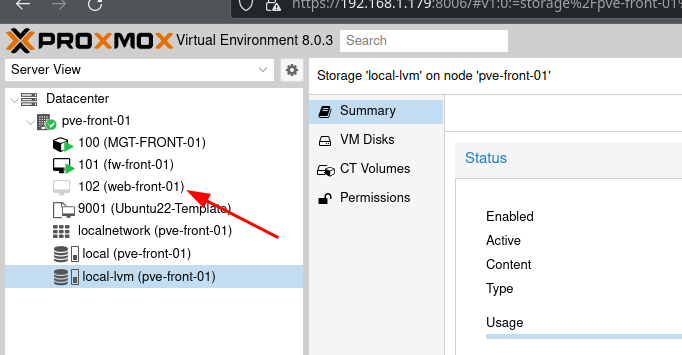
                La VM a été créée:
                
                [![image.png](https://book.techoops.fr/uploads/images/gallery/2023-07/scaled-1680-/6LUimage.png)](https://book.techoops.fr/uploads/images/gallery/2023-07/6LUimage.png)
# Création d'un container Linux Avec Terraform

1. 1. Paramétrage de PROXMOX (création d'une clé d'API)  
        [![image.png](https://book.techoops.fr/uploads/images/gallery/2023-07/scaled-1680-/Ekcimage.png)](https://book.techoops.fr/uploads/images/gallery/2023-07/Ekcimage.png)
        
        [![image.png](https://book.techoops.fr/uploads/images/gallery/2023-07/scaled-1680-/ofSimage.png)](https://book.techoops.fr/uploads/images/gallery/2023-07/ofSimage.png)
        
        [![image.png](https://book.techoops.fr/uploads/images/gallery/2023-07/scaled-1680-/I3timage.png)](https://book.techoops.fr/uploads/images/gallery/2023-07/I3timage.png)  
        <span style="background-color: rgb(255, 255, 255); color: rgb(224, 62, 45);">**Attention Il faut bien noté le token !!**</span>
    2. <span style="background-color: rgb(255, 255, 255); color: rgb(0, 0, 0);"> Installation de TERRAFORM sur une DEBIAN (Créer un container de management)</span>
        1. <span style="background-color: rgb(255, 255, 255); color: rgb(0, 0, 0);">Suivre la documentation officielle [https://developer.hashicorp.com/terraform/tutorials/aws-get-started/install-cli](https://developer.hashicorp.com/terraform/tutorials/aws-get-started/install-cli)</span>
        2. <span style="background-color: rgb(255, 255, 255); color: rgb(0, 0, 0);"><span style="background-color: rgb(255, 255, 255); color: rgb(0, 0, 0);">Vérifier l'installation de TERRAFORM:  
            </span></span>```bash
            root@MGT-FRONT-01:~# terraform -v
            Terraform v1.5.2
            on linux_amd64
            ```
    3. Premier déploiement de machine 
        1. Créer un dossier de travail:  
            ```bash
            mkdir VM_CREATION && cd VM_CREATION
            ```
        2. On va créer un fichier provider.tf ce fichier va référencer les module que nous utiliserons pour la création des VM.  
            ```
            # Creation du fichier provider.tf
            nano provider.tf
            ```
            
            Contenu du fichier:
            
            ```bash
            terraform {
              required_providers {
                proxmox = {
                  source = "telmate/proxmox"
            #      version = "2.7.4"
                }
              }
            }
            provider "proxmox" {
              # url de Proxmox
              pm_api_url = "https://192.168.1.179:8006/api2/json"
              # api token id is in the form of: <username>@pam!<tokenId>
              pm_tls_insecure = true
              pm_parallel = 2
              pm_user="root@pam"
              pm_password="Espoir15"
            }
            ```
        3. On créer le fichier web.tf:  
            ```bash
            nano web.tf
            ```
            
            Contenu du fichier:
            
            ```bash
            resource "proxmox_lxc" "web" {
              #count        = 2
              count        = 1
              target_node  = "pve-front-01"
              hostname     = "web-front-0${count.index + 1}"
              start        = true
              ostemplate   = "/mnt/pve/ISOs/template/cache/debian-12-standard_12.0-1_amd64.tar.zst"
              unprivileged = true
              ostype       = "debian"
              nameserver   = "172.16.0.3 172.16.0.4 1.1.1.1"
              onboot       = true
              searchdomain = "megaproduction.local"
              memory       = "512"
            #  pool         = "BTS2"
              cores        = "1"
            
              ssh_public_keys = <<-EOT
                ssh-ed25519 AAAAC3NzaC1lZDI1NTE5AAAAIHGQDKDGsODUESc5SWLCK0W2/5yAg/xdrXtVCtgE170H root@adm-front-01
                ssh-ed25519 AAAAC3NzaC1lZDI1NTE5AAAAIIeq/iHCth8j1aKG/DMq0rd3bveLgqksAkwBOhYgAFG1 kvega@fr-lap10398
              EOT
               
              // Terraform will crash without rootfs defined
              rootfs {
                storage = "VMs_HDD"
                size    = "8G"
              }
            
              features {
                fuse    = true
                nesting = true
                mount   = "nfs;cifs"
              }
            
              network {
                name   = "eth0"
                bridge = "vmbr2"
                #ip     = "10.10.10.${2 + count.index + 1}/26"
                ip     = "10.10.10.1/26"
                gw     = "10.10.10.1"
              }
            }
            ```
            
            <p class="callout info">source du provider terraform [PROVIDER-TERRAFORM](https://registry.terraform.io/providers/Telmate/proxmox/2.6.3/docs)  
            </p>
            
            
            1. Initialisation du dossier:  
                ```bash
                root@MGT-FRONT-01:~# terraform init 
                
                Initializing the backend...
                
                Initializing provider plugins...
                - Finding latest version of telmate/proxmox...
                - Installing telmate/proxmox v2.9.14...
                - Installed telmate/proxmox v2.9.14 (self-signed, key ID A9EBBE091B35AFCE)
                
                Partner and community providers are signed by their developers.
                If you'd like to know more about provider signing, you can read about it here:
                https://www.terraform.io/docs/cli/plugins/signing.html
                
                Terraform has created a lock file .terraform.lock.hcl to record the provider
                selections it made above. Include this file in your version control repository
                so that Terraform can guarantee to make the same selections by default when
                you run "terraform init" in the future.
                
                Terraform has been successfully initialized!
                
                You may now begin working with Terraform. Try running "terraform plan" to see
                any changes that are required for your infrastructure. All Terraform commands
                should now work.
                
                If you ever set or change modules or backend configuration for Terraform,
                rerun this command to reinitialize your working directory. If you forget, other
                commands will detect it and remind you to do so if necessary.
                ```
            2. Planification du déploiement (Montre ce qui va être déployé):  
                ```bash
                terraform plan
                ```
            3. On déploie réellement:
                
                ```bash
                terraform apply 
                ```
                
                On valide les modifications:
                
                ```bash
                Do you want to perform these actions?
                  Terraform will perform the actions described above.
                  Only 'yes' will be accepted to approve.
                
                  Enter a value: yes
                ```
                
                La VM a été créée:
                
                [![image.png](https://book.techoops.fr/uploads/images/gallery/2023-07/scaled-1680-/6LUimage.png)](https://book.techoops.fr/uploads/images/gallery/2023-07/6LUimage.png)

# Creation d'une VM linux avec opentofu

### Prérequis

- Disposer d'un cluster proxmox valide
- Avoir Opentofu d'installé
- Avoir un serveur linux (Bastion) au seins du cluster avec un e paire de clé SSH de disponible

### Mise en place de la configuration (SSH)

- Transférer la clé SSH publique sur le serveur proxmox 
    - Sur le Serveur (Bastion)  
        ```bash
        > cat .ssh/id_ed25519.pub
        ssh-ed25519 AAAAC3NzaC1lZDI1NTE5AAAAICqLxAZ0VeOyxKeDgxb9Gp7upKGs/w1+NrDRXcVYjLii root@adm-front-01
        ```
    - Sur le Proxmox  
        ```bash
        root@pve-front-01:~# echo "ssh-ed25519 AAAAC3NzaC1lZDI1NTE5AAAAICqLxAZ0VeOyxKeDgxb9Gp7upKGs/w1+NrDRXcVYjLii root@adm-front-01" >> /root/.ssh/authorized_keys
        ```
    - Test de la connexion depuis le serveur sur le proxmox  
        ```bash
        ssh -q -o BatchMode=yes -o ConnectTimeout=5 root@$PVE_ADDRESS exit
        echo $?
        # Si le retour de la commande est différent de 0 la connexion est en echec
        ```
- Mise en place du fichier provider 
    - créer le fichier provider.tf  
        ```yaml
        terraform {
            required_providers {
            proxmox = {
              source = "bpg/proxmox" # --> https://registry.terraform.io/providers/bpg/proxmox/latest/docs
              version = "0.74.1"
            }
          }
        }
        
        provider "proxmox" {
          endpoint = "https://{PVE_ADDRESS}:8006"
          username = "root@pam"
          password = "{PVE_ROOT_PASSWORD}"
          insecure = true
        
          ssh {
            agent = true
            username = "root"
        
            node {
              name = "pve-front-01"
              address = "{PVE_ADDRESS}"
              port = 2222 # -> PVE SSH PORT
            }
          }
        }
        
        ```
        
        <p class="callout info align-center">Lien vers le fichier [provider.tf](https://book.techoops.fr/attachments/1)</p>
- Initialisation du provider  
    ```bash
    > tofu init
    
    Initializing the backend...
    
    Initializing provider plugins...
    - Reusing previous version of bpg/proxmox from the dependency lock file
    - Using previously-installed bpg/proxmox v0.74.1
    
    OpenTofu has been successfully initialized!
    
    You may now begin working with OpenTofu. Try running "tofu plan" to see
    any changes that are required for your infrastructure. All OpenTofu commands
    should now work.
    
    If you ever set or change modules or backend configuration for OpenTofu,
    rerun this command to reinitialize your working directory. If you forget, other
    commands will detect it and remind you to do so if necessary.
    ```

### Mise en place des fichiers de configuration VMs

- Téléchargement du fichier cloudinit via tofu  
    
    - Créer le fichier file.tf  
        ```yaml
        resource "proxmox_virtual_environment_file" "latest_debian_12" {
          content_type = "vztmpl"
          datastore_id = "local"
          node_name = "pve-front-01"
          source_file {
            path = "http://download.proxmox.com/images/system/debian-12-standard_12.7-1_amd64.tar.zst"
          }
        }
        ```
- Déclaration de la ressource Qemu (VM) 
    - - Créer le fichier test\_qemu.tf  
            ```yaml
            resource "proxmox_virtual_environment_vm" "test-qemu" {
              count = 1
              name      = "test-qemu-0${ count.index + 1 }"
              node_name = "pve-front-01"
            
              initialization {
                datastore_id = "local"
                dns {
                  domain = "kvega.local"
                  servers = ["1.1.1.1", "8.8.8.8"]
                }
                ip_config {
                  ipv4 {
                    address = "192.168.210.1${ count.index + 1 }/26"
                    gateway = "192.168.210.1"
                    # ou encore address = "192.168.1.100/24"
                  }
                }
                user_account {
                  # do not use this in production, configure your own ssh key instead!
                  username = "admin"
                  keys  = ["ssh-ed25519 AAAAC3NzaC1lZDI1NTE5AAAAICqLxAZ0VeOyxKeDgxb9Gp7upKGs/w1+NrDRXcVYjLii root@adm-front-01",
                    "ssh-ed25519 AAAAC3NzaC1lZDI1NTE5AAAAIJHXgvmOWJLUrFgmlVa49RdqYqUsyjVAQgAuBq7K7nis kvega@FR-LAP10398",]
                  password = "Strongpassword"
                }
            
              }
            
              memory {
                  dedicated = 4096
              }
            
              cpu {
                  cores = 2
                  type = "host"
              }
            
              network_device {
                  bridge = "ovsbr2"
                  model = "virtio"
              }
            
              lifecycle {
                ignore_changes = [
                  network_device, # on conserve l'adresse MAC pour éviter de régénérer la VM
                ]
              }
            
              operating_system {
                type = "l26"
              }
            
              disk {
                datastore_id = "local"
                file_id      = proxmox_virtual_environment_file.debian_cloud_image.id
                interface    = "virtio0"
                iothread     = true
                discard      = "on"
                size         = 30
              }
            }
            ```

### Application des configurations

Sur un terminal

- Test de configuration 
    - `tofu plan` --&gt; permet de voire ce qui sera fait en quelque sorte un dry-run
    - `tofu apply` --&gt; va appliquer les modification si vous entrez le mot yes à la fin

# Proxmox BACKUP

# Installation de Proxmox Backup Server

#### CREATION DE LA VM

1. Télécharger l'[ISO](https://www.proxmox.com/en/downloads)
2. Créer la VM  
    
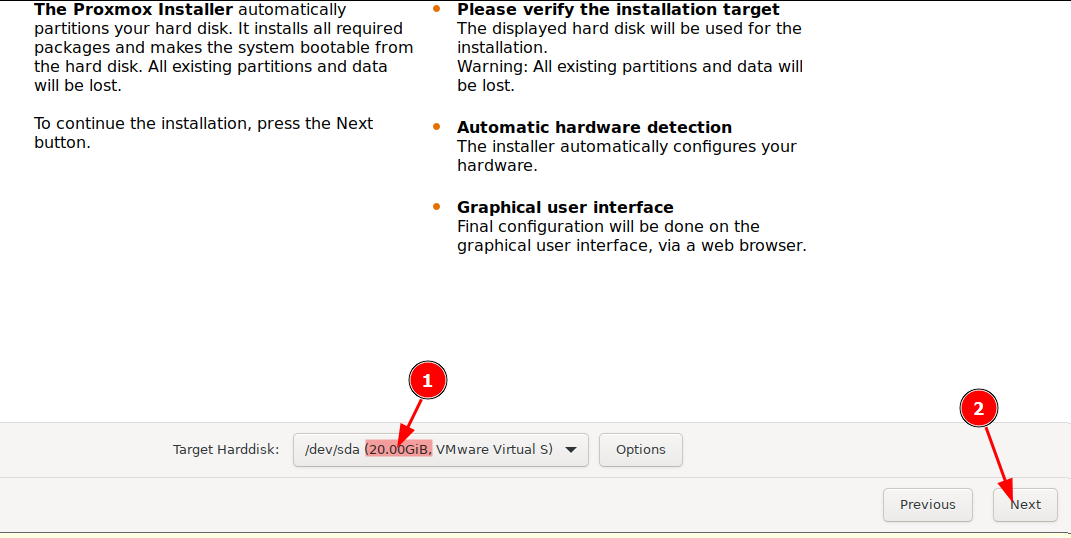
    1. Mettez 20 Go pour le disque dur
    2. Ajouter un disque dur à la fin succeptible d'acceuillir les backups (100 Go)
3. Mettre le réseau sur le même que le PVE
4. Démarrer la VM
5. Installation de la VM  
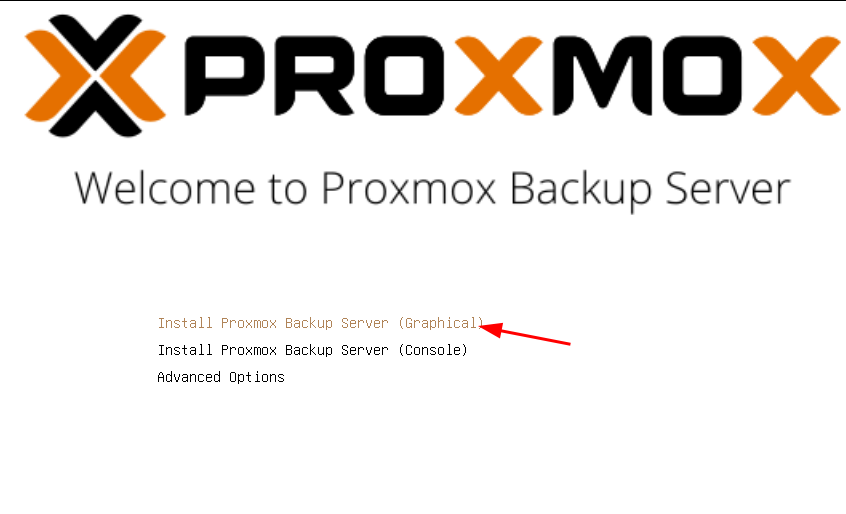
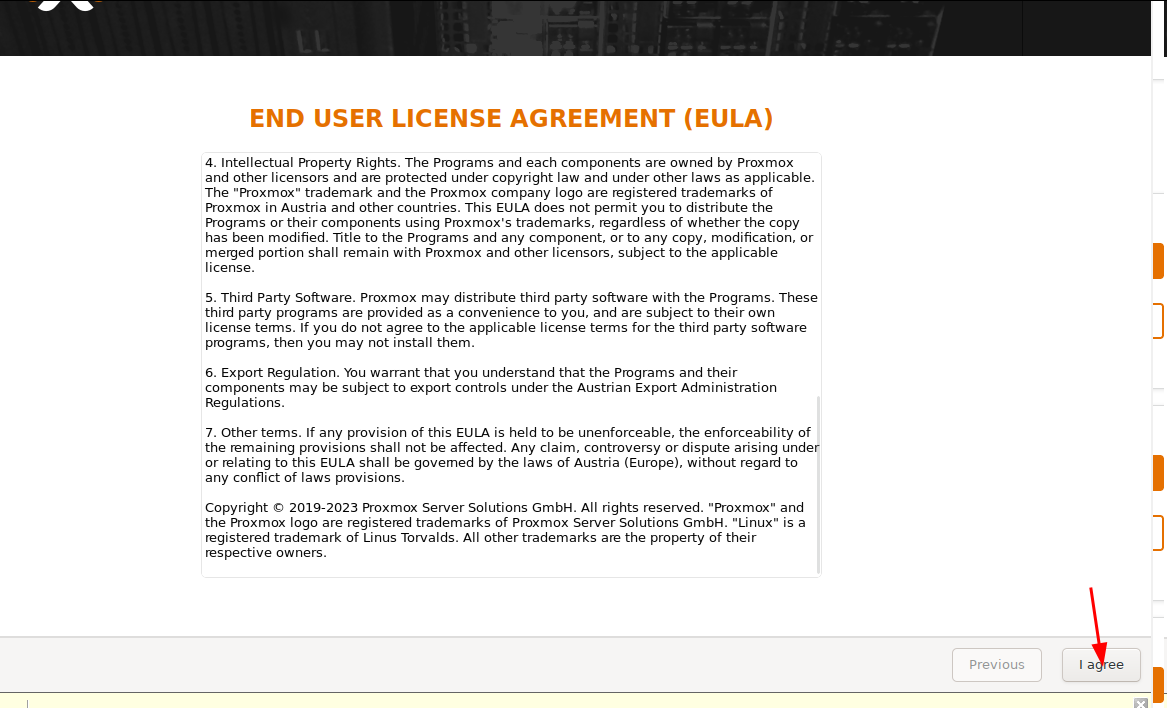
    [![image.png](https://book.techoops.fr/uploads/images/gallery/2023-12/scaled-1680-/26zimage.png)](https://book.techoops.fr/uploads/images/gallery/2023-12/26zimage.png)
    
    [![image.png](https://book.techoops.fr/uploads/images/gallery/2023-12/scaled-1680-/aLFimage.png)](https://book.techoops.fr/uploads/images/gallery/2023-12/aLFimage.png)
    
    [![image.png](https://book.techoops.fr/uploads/images/gallery/2023-12/scaled-1680-/RFdimage.png)](https://book.techoops.fr/uploads/images/gallery/2023-12/RFdimage.png)
    
    [![image.png](https://book.techoops.fr/uploads/images/gallery/2023-12/scaled-1680-/tEIimage.png)](https://book.techoops.fr/uploads/images/gallery/2023-12/tEIimage.png)
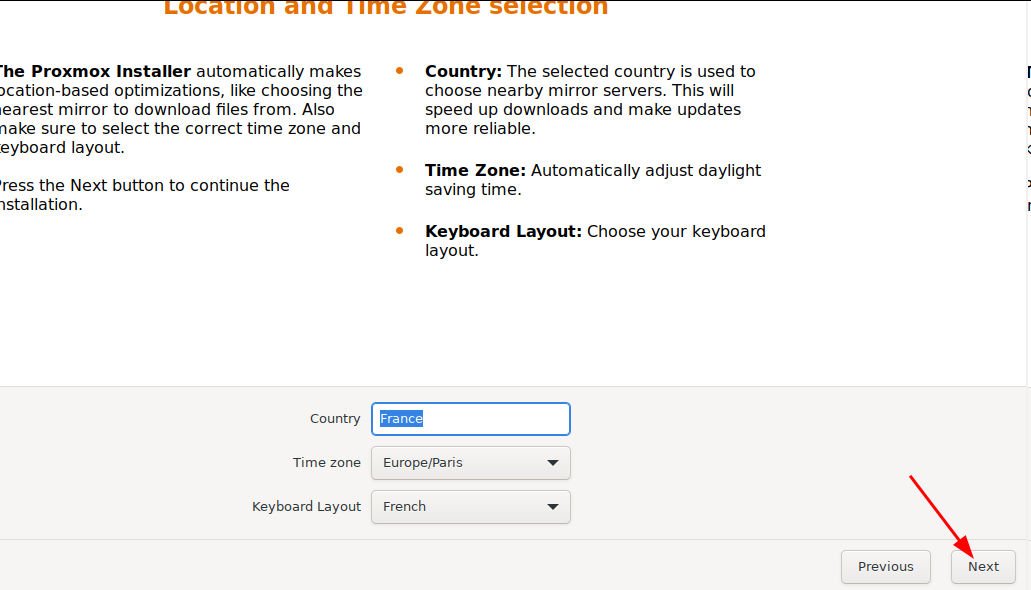
    
    [![image.png](https://book.techoops.fr/uploads/images/gallery/2023-12/scaled-1680-/xNvimage.png)](https://book.techoops.fr/uploads/images/gallery/2023-12/xNvimage.png)
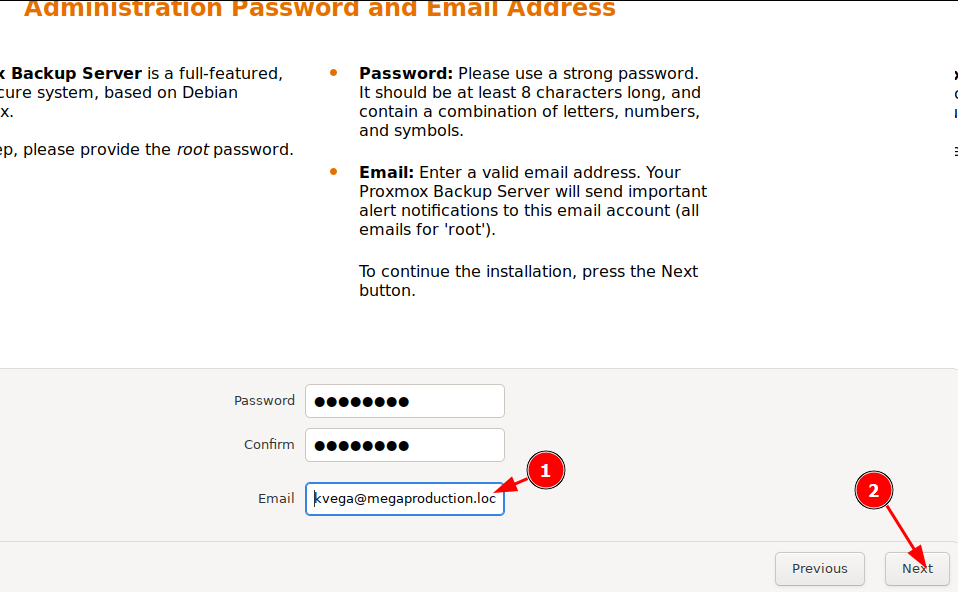
    
    [![image.png](https://book.techoops.fr/uploads/images/gallery/2023-12/scaled-1680-/yinimage.png)](https://book.techoops.fr/uploads/images/gallery/2023-12/yinimage.png)
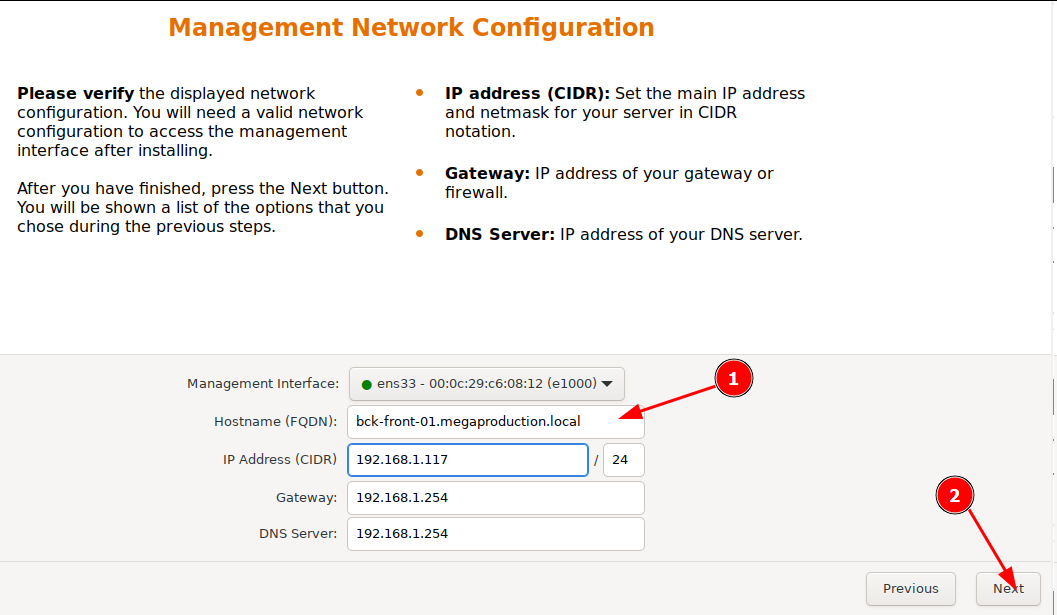
    
    [![image.png](https://book.techoops.fr/uploads/images/gallery/2023-12/scaled-1680-/dD9image.png)](https://book.techoops.fr/uploads/images/gallery/2023-12/dD9image.png)
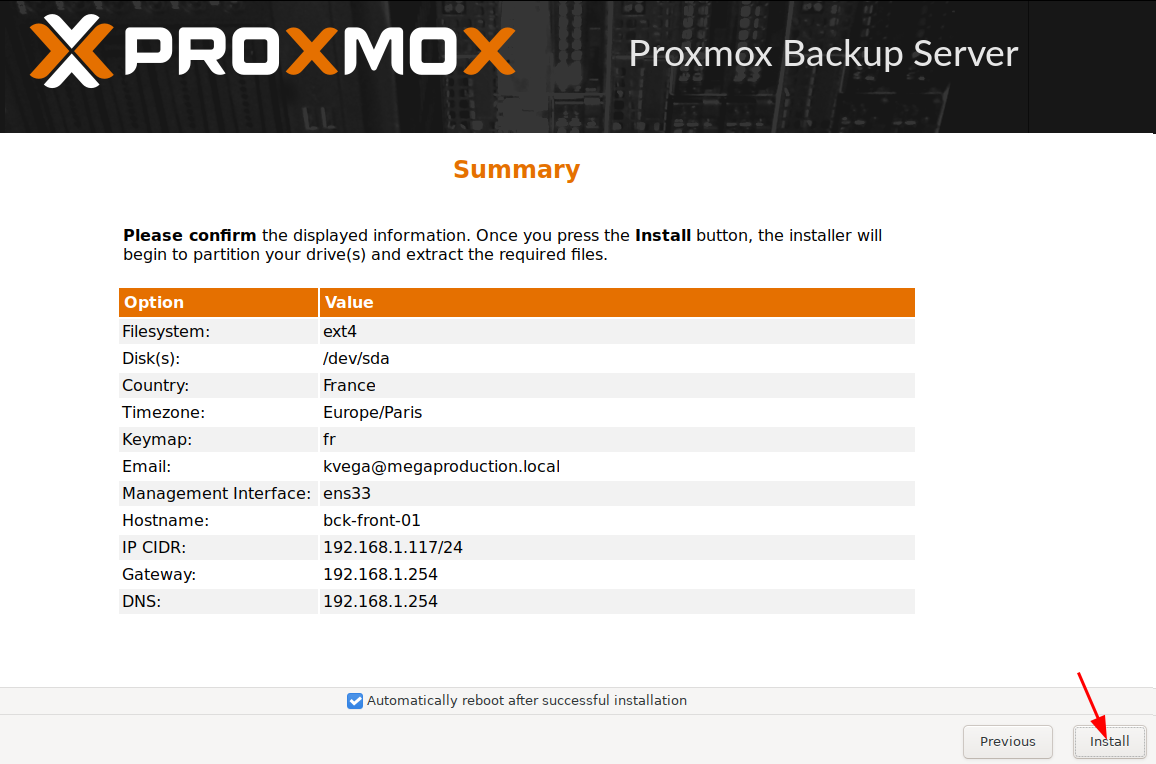
6. Le serveur est accèssible via l'IP configuré plus haut pour moi [https://192.168.1.117:8007](https://192.168.1.117:8007)  
    [![image.png](https://book.techoops.fr/uploads/images/gallery/2023-12/scaled-1680-/94limage.png)](https://book.techoops.fr/uploads/images/gallery/2023-12/94limage.png)
#### Ajout d'un DATASTORE  


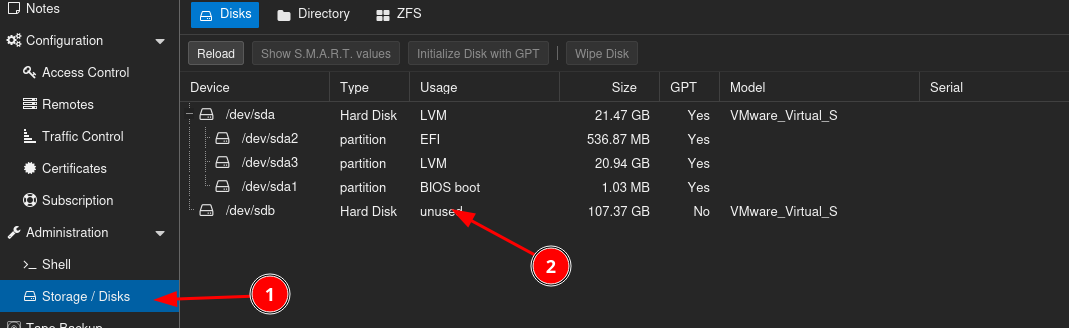
1. S'assurer d'avoir un disque dur supplémentaire  
    [![image.png](https://book.techoops.fr/uploads/images/gallery/2024-01/scaled-1680-/BfPimage.png)](https://book.techoops.fr/uploads/images/gallery/2024-01/BfPimage.png)
2. Se connecter au serveur de backup en ssh
3. Lister les disque disponible  
    ```bash
    root@bck-front-01:~# lsblk
    NAME         MAJ:MIN RM  SIZE RO TYPE MOUNTPOINTS
    sda            8:0    0   20G  0 disk 
    ├─sda1         8:1    0 1007K  0 part 
    ├─sda2         8:2    0  512M  0 part 
    └─sda3         8:3    0 19.5G  0 part 
      ├─pbs-swap 252:0    0  1.9G  0 lvm  [SWAP]
      └─pbs-root 252:1    0 17.6G  0 lvm  /
    sdb            8:16   0  100G  0 disk
    ```
    
    Ici on vois bien mon disque de 100 Go je peux continuer
4. Créer un dossier qui nous servira de dossier de backup  
    ```bash
    root@bck-front-01:~# mkdir /BACKUP
    root@bck-front-01:~# ls / |grep BACKUP
    BACKUP
    ```
5. Créer la partition sur le disque, pour moi ce disque est sdb  
    ```bash
    root@bck-front-01:~# fdisk /dev/sdb 
    
    Welcome to fdisk (util-linux 2.38.1).
    Changes will remain in memory only, until you decide to write them.
    Be careful before using the write command.
    
    Device does not contain a recognized partition table.
    Created a new DOS (MBR) disklabel with disk identifier 0xc6692165.
    
    Command (m for help): n
    Partition type
       p   primary (0 primary, 0 extended, 4 free)
       e   extended (container for logical partitions)
    Select (default p): p
    Partition number (1-4, default 1): 1
    First sector (2048-209715199, default 2048): 
    Last sector, +/-sectors or +/-size{K,M,G,T,P} (2048-209715199, default 209715199): 
    
    Created a new partition 1 of type 'Linux' and of size 100 GiB.
    
    Command (m for help): t
    Selected partition 1
    Hex code or alias (type L to list all): 83
    Changed type of partition 'Linux' to 'Linux'.
    
    Command (m for help): w
    
    ```
    
    On vois que la nouvelle partition a été créée
    
    ```bash
    root@bck-front-01:~# lsblk
    NAME         MAJ:MIN RM  SIZE RO TYPE MOUNTPOINTS
    sda            8:0    0   20G  0 disk 
    ├─sda1         8:1    0 1007K  0 part 
    ├─sda2         8:2    0  512M  0 part 
    └─sda3         8:3    0 19.5G  0 part 
      ├─pbs-swap 252:0    0  1.9G  0 lvm  [SWAP]
      └─pbs-root 252:1    0 17.6G  0 lvm  /
    sdb            8:16   0  100G  0 disk 
    └─sdb1         8:17   0  100G  0 part 
    ```
6. Formater la partition en ext4  
    ```bash
    root@bck-front-01:~# mkfs.ext4 -b 4096 /dev/sdb1 
    mke2fs 1.47.0 (5-Feb-2023)
    Creating filesystem with 26214144 4k blocks and 6553600 inodes
    Filesystem UUID: 5b339dd1-548b-4781-ae76-db130436f824
    Superblock backups stored on blocks: 
            32768, 98304, 163840, 229376, 294912, 819200, 884736, 1605632, 2654208, 
            4096000, 7962624, 11239424, 20480000, 23887872
    
    Allocating group tables: done                            
    Writing inode tables: done                            
    Creating journal (131072 blocks): done
    Writing superblocks and filesystem accounting information: done
    ```
7. Monter la partition sur le serveur: 
    1. Editer le fichier `/etc/fstab`
    2. Ajouter la ligne suivante en fin de fichier:  
        `<span style="font-family: monospace;"><span style="color: #000000; background-color: #ffffff;">/dev/sdb1       /BACKUP ext4    defaults</span></span>`
    3. Monter le volume:  
        `mount -a `
    4. Vérifier si disques est bien monté:  
        ```bash
        root@bck-front-01:~# cat /etc/fstab 
        # <file system> <mount point> <type> <options> <dump> <pass>
        /dev/pbs/root / ext4 errors=remount-ro 0 1
        /dev/pbs/swap none swap sw 0 0
        proc /proc proc defaults 0 0
        /dev/sdb1       /BACKUP ext4    defaults
        ```
8. Retourner sur la GUI et ajouter le datastore  
    [![image.png](https://book.techoops.fr/uploads/images/gallery/2024-01/scaled-1680-/omNimage.png)](https://book.techoops.fr/uploads/images/gallery/2024-01/omNimage.png)

#### Lier le serveur de BACKUP au serveur PROXMOX

1. Se connecter au serveur Proxmox via la GUI
2. Récupérer les informations de jonctions:  
    [![image.png](https://book.techoops.fr/uploads/images/gallery/2024-01/scaled-1680-/Z54image.png)](https://book.techoops.fr/uploads/images/gallery/2024-01/Z54image.png)
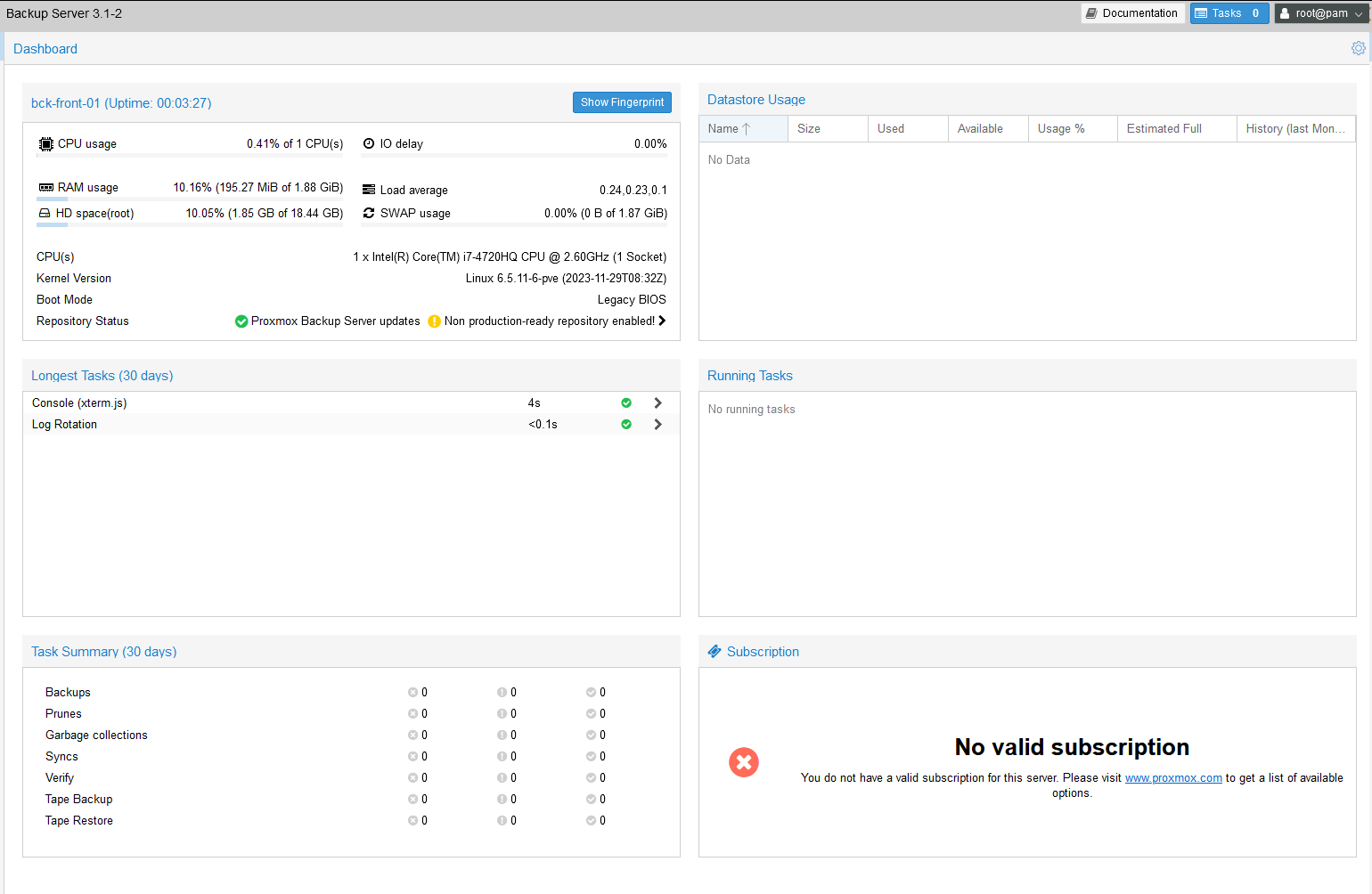
3. Se connecter au serveur de Backup et récupérer le fingerprint   
    [![image.png](https://book.techoops.fr/uploads/images/gallery/2024-01/scaled-1680-/3CCimage.png)](https://book.techoops.fr/uploads/images/gallery/2024-01/3CCimage.png)
4. Enfin ajouter le serveur de backup sur le serveur PROXMOX  
    [![image.png](https://book.techoops.fr/uploads/images/gallery/2024-01/scaled-1680-/I7Yimage.png)](https://book.techoops.fr/uploads/images/gallery/2024-01/I7Yimage.png)

# Backup and Restore d'un proxmox A à un proxmox B

# 🧭 Migration d'une VM Proxmox vers un autre serveur - Méthode Backup & Restore

## 1. Sauvegarder la VM sur l'ancien serveur

```bash
vzdump <VMID> --storage local --mode stop
```

- `<VMID>` : ID de la VM à migrer  
- `--mode stop` : la VM sera arrêtée durant la sauvegarde (plus sûr)  
- Le fichier de sauvegarde sera créé dans `/var/lib/vz/dump/`

---

## 2. Copier le fichier de sauvegarde vers le nouveau serveur

```bash
scp /var/lib/vz/dump/vzdump-qemu-<VMID>-*.vma.zst root@<NOUVEAU_IP>:/var/lib/vz/dump/
```

---

## 3. Restaurer la VM sur le nouveau serveur

```bash
qmrestore /var/lib/vz/dump/vzdump-qemu-<VMID>-*.vma.zst <NOUVEL_VMID>
```

### Option : Spécifier le stockage cible

```bash
qmrestore /var/lib/vz/dump/vzdump-qemu-<VMID>-*.vma.zst <NOUVEL_VMID> --storage local-lvm
```

# Proxmox LDAP

permet la connexion depuis proxmox avec un active directory

# Proxmox LDAP Initialisation

#### Prérequis:

- Avoir un active directory joignable depuis le proxmox (ping pve vers ad)
- Avoir une adresse IP sur vmbr0 et vmbr1
- avoir un utilisateur bind\_proxmox sur l'active directory

Adresse IP sur la WAN et la LAN

[![image.png](https://book.techoops.fr/uploads/images/gallery/2025-01/scaled-1680-/Wd9image.png)](https://book.techoops.fr/uploads/images/gallery/2025-01/Wd9image.png)

Aller dans datacenter puis realms :

[![image.png](https://book.techoops.fr/uploads/images/gallery/2025-01/scaled-1680-/JUFimage.png)](https://book.techoops.fr/uploads/images/gallery/2025-01/JUFimage.png)

Cliquer sur add, active directory server:

[![image.png](https://book.techoops.fr/uploads/images/gallery/2025-01/scaled-1680-/CGnimage.png)](https://book.techoops.fr/uploads/images/gallery/2025-01/CGnimage.png)

dans le bind user mettre :

CN=bind\_pfsense,OU=CONNECTEURS,OU=MEGAPRODUCTION,OU=UTILISATEURS,DC=megaproduction,DC=local --&gt;<span style="background-color: rgb(236, 240, 241); color: rgb(224, 62, 45);">a modifier selon votre ad</span>

dans le doute mettre le bind password

[![image.png](https://book.techoops.fr/uploads/images/gallery/2025-01/scaled-1680-/8zNimage.png)](https://book.techoops.fr/uploads/images/gallery/2025-01/8zNimage.png)

Puis creer une synchronisation automatique:

[![image.png](https://book.techoops.fr/uploads/images/gallery/2025-01/scaled-1680-/XAHimage.png)](https://book.techoops.fr/uploads/images/gallery/2025-01/XAHimage.png)

Pour tester la connexion cliquer sur run now, si aucune erreur = sa marche

[![image.png](https://book.techoops.fr/uploads/images/gallery/2025-01/scaled-1680-/99Pimage.png)](https://book.techoops.fr/uploads/images/gallery/2025-01/99Pimage.png)

verifier la connexion en se connectant bien sur le realm megaproduction.local

[![image.png](https://book.techoops.fr/uploads/images/gallery/2025-01/scaled-1680-/KKVimage.png)](https://book.techoops.fr/uploads/images/gallery/2025-01/KKVimage.png)

Une fois que vous pouvez vous connecter il faut ajouter les permissions a vos utilisateur :

[![image.png](https://book.techoops.fr/uploads/images/gallery/2025-01/scaled-1680-/5g1image.png)](https://book.techoops.fr/uploads/images/gallery/2025-01/5g1image.png)

[![image.png](https://book.techoops.fr/uploads/images/gallery/2025-01/scaled-1680-/0wdimage.png)](https://book.techoops.fr/uploads/images/gallery/2025-01/0wdimage.png)

une fois les permission donnée c'est tout bon vous avez acces a vos machines sur vos comptes proxmox
